
Key Takeaways
Form validation improves UX and conversions – Clear validation messages help users fix errors quickly, reducing frustration and form abandonment.
Client-side and server-side validation must work together – Client-side validation provides speed and usability, while server-side validation ensures security and data integrity.
Use native and custom validation strategically – HTML native validation is fast to implement, but JavaScript and API-based validation allow for custom logic and better control.
On-blur and on-submit validation offer the best balance – On-blur validation gives timely feedback, while final checks on submit prevent invalid data from being sent.
Always treat user input as untrusted – Validate, sanitize, and re-check all inputs on the server, even if the form appears valid on the client.
Every time a user fills out a form on your website, you have a critical moment to either guide them smoothly to success or frustrate them into leaving. Form validation best practices help catch errors early, protect data integrity, and improve the overall user experience (UX).
In this guide, we’ll explore HTML and CSS, JavaScript form validation, server-side checks, and accessibility best practices with practical code examples.
What is form validation and why does it matters?
Form validation is the process of validating input against a predefined set of validation rules. It ensures required fields are completed, formats like email addresses are correct, and values meet business or security constraints.
Why validation matters:
Improves UI and UX. Clear validation messages and instant feedback prevent frustration and reduce drop-offs.
Protects data and systems. Server-side validation blocks SQL injection, XSS, and malformed requests before they reach your database or API.
Boosts conversions. Clear error handling can improve form completion rates by 10–20%.
Client-side vs. server-side validation
No single validation method is enough on its own. Client-side validation improves speed and usability but can be bypassed. Server-side validation is secure but slower.
That’s why web development relies on using validation on both sides.
Client-side validation best practices
HTML form validation
HTML5 validation attributes let you validate forms right in your browser without writing a single line of JavaScript.
Key HTML5 validation attributes:
requiredensures users can’t skip mandatory fieldsInput
typeattributes (email, tel, number, date) automatically check formatspatternuses regex to enforce custom formats like phone numbers or zip codesminlength,maxlength,min, andmaxcontrol length and value ranges
These work in all modern browsers, older ones like IE9 have limited support. Always back them up with server-side validation.
Quick code example:
This validates email format. It requires the email address field to be filled, checks that the value matches a valid email format using a regex pattern, and shows a placeholder example ([email protected]) to guide the user.
Validating form in JavaScript
Use JavaScript when you need custom validation error messages, real-time feedback, or validation logic HTML can’t handle, like checking if a username is already taken. Real-time validation shows errors as users type (great for password strength), while on-submit validation catches everything before sending.
The best approach combines both: on-blur for immediate field feedback, on-submit for final checks.
Quick code example:
This JavaScript checks the email input when the user leaves the field and adds or removes an invalid CSS class based on whether the value contains an @ symbol.
CSS styling for validation states
Visual feedback helps users instantly see which fields are correct or need fixing. Use CSS :valid and :invalid pseudo-classes to style inputs automatically based on their validation state, no JavaScript needed.
This CSS visually indicates validation status by styling valid inputs with a green border and check icon, invalid inputs with a red border and error icon, and formats error messages with clear, readable styling.
Server-side validation: The non-negotiable layer
Client-side checks improve UX, but server-side validation is mandatory. Without it, applications are vulnerable to SQL injection, XSS, spam, and corrupted data. Server-side validation ensures every submission follows your rules, no matter how it’s sent.
Best practices for form control and validation: treat all input as untrusted, validate every field (format, length, business logic), sanitize data, and follow a clear order, check required fields, validate formats (like email), then enforce rules such as uniqueness before saving.
This validation process, client side validation for UX, server-side for security, handles input properly and prevents the form from being submitted with bad data.
UX best practices for form validation
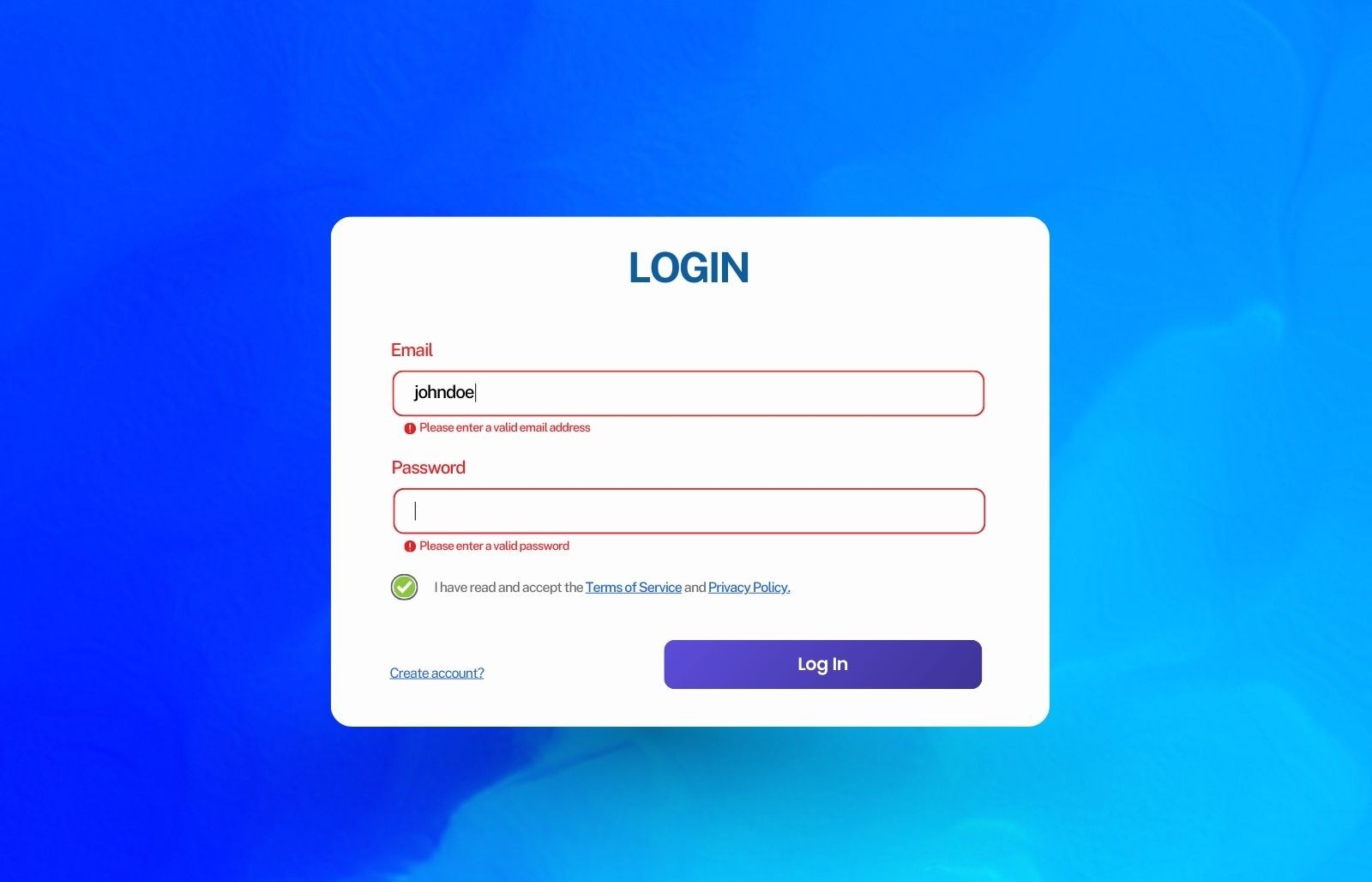
When to validate
Validation timing dramatically impacts user experience.
Inline validation (real-time) shows feedback as users type, perfect for password strength meters or username availability checks. It creates responsive UIs but can overwhelm users if triggered too early.
On-blur validation waits until users leave a field (click elsewhere), striking the best balance. Users get instant feedback without keystroke interruptions, making it ideal for email format checks or phone number formatting.
On-submit validation, the validator catches everything when users try submitting the form. It prevents the form from being submitted with invalid input but feels slower since users must wait for error display.
Hybrid approaches work best: use on-blur for individual fields (immediate feedback after completing a field) + on-submit for final validation checks. This gives users progressive guidance while ensuring nothing slips through. Real-time inline validation shines for complex fields like passwords, while on-blur handles most form fields perfectly.
Validation error message design
Clear, actionable error messages tell users exactly what went wrong and how to fix it. Instead of vague “Invalid input,” say “Email must include an @ symbol and domain.” Users fix problems 3x faster with specific guidance that provides clear validation error messages.
Good vs. bad examples:
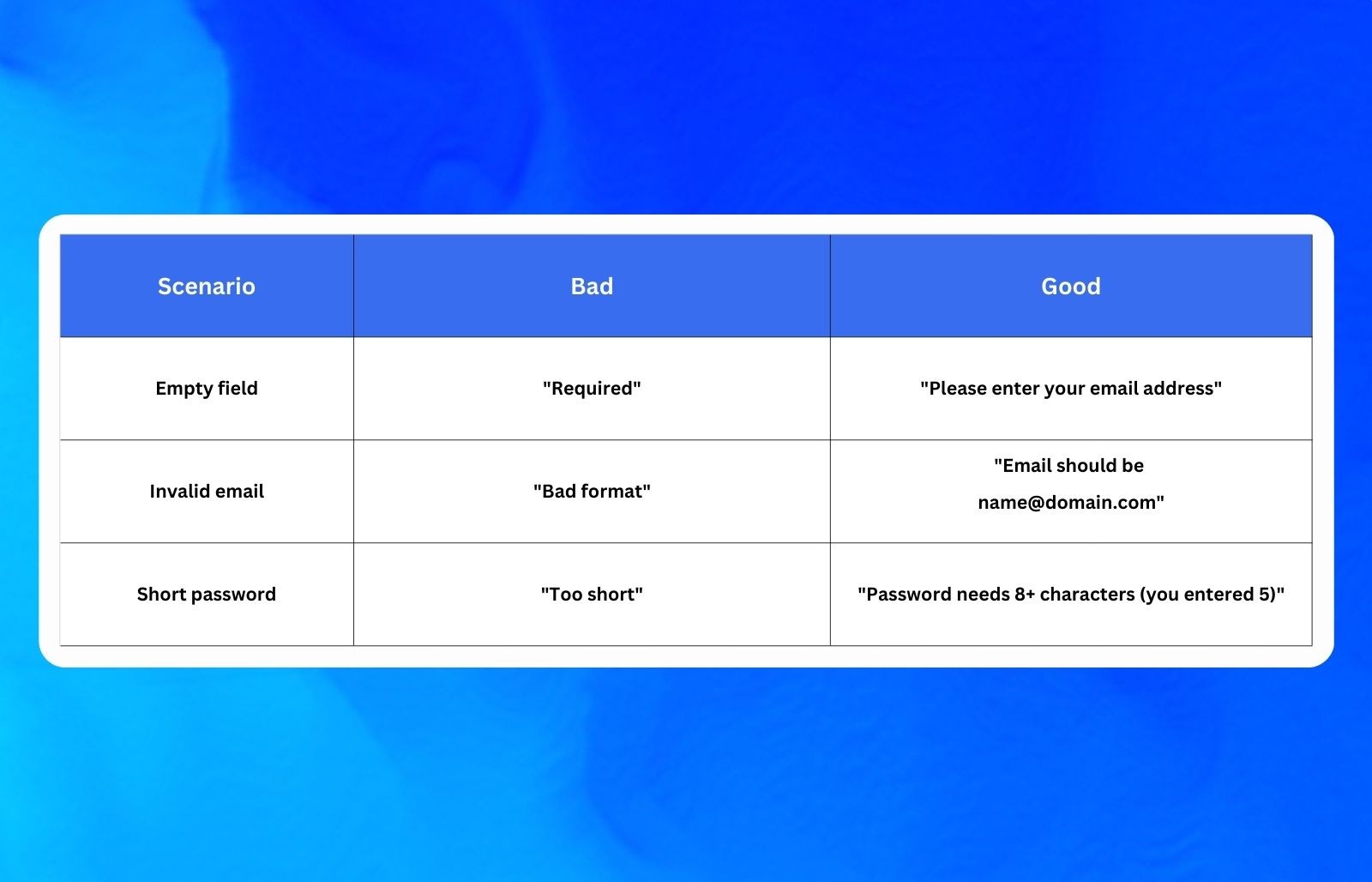
Preventing user frustration
Validate fields as users type to fix one issue at a time instead of facing error overload. Green checkmarks show progress and double form completion rates with positive feedback.
Progressive validation helps create better user experiences while preventing the form from being submitted with issues.
Common form validation patterns
Good forms validate each field type properly while keeping things smooth for users.
Email validation
Start with the browser’s built-in email check. Add extra checking for proper format: text + “@” + domain. Always check again on your server. Show clear errors like “Enter a valid email address.”
Password validation
Ask for 12+ characters with letters, numbers and symbols. Show a live strength meter (weak/medium/strong) as users type. Check passwords securely on the server. Live feedback helps users make better passwords.
Phone number validation
Let users type US numbers any way they want. Clean up spaces and brackets before saving. Allow both regular and +1 international formats. Check the cleaned number on the server.
Date validation
Use the browser’s date picker with start/end date limits. Show MM/DD/YYYY format clearly for text boxes. Always double-check dates on the server. Date pickers work better than typing dates.
Common mistakes to avoid
Many developers make simple errors that frustrate users and hurt conversions. Here’s what to watch out for.
Over-relying on client-side validation fails when JavaScript is off. Always validate server-side too.
Vague error messages like “Invalid input” confuse users. Say “Email needs @ symbol” instead.
Wrong timing: Don’t validate every keystroke or only on submit. Use on-blur + final check.
Ignoring accessibility can lead to issues with form submission and user experience. Add ARIA labels and proper contrast.
Skipping edge cases breaks real forms. Test tagged emails, international phones, leap years.
Frequently asked questions
What is the difference between client-side and server-side form validation?
Client-side validation checks input in the browser for instant user feedback and improved speed, while server-side validation securely verifies data on your server to prevent malicious attacks like SQL injection and XSS. Both are essential, client-side enhances UX, server-side ensures security. Using them together protects your application and users.
When should you validate form fields, on blur, on submit, or while typing?
On-blur validation offers the best balance, providing feedback after users leave each field without interrupting their typing. Combine it with on-submit validation for a final comprehensive check before data is sent. Real-time validation during typing works well for specific fields like password strength, but can feel intrusive for general forms.
How do you write validation error messages that actually help users?
Instead of vague messages like "Invalid input," provide specific guidance such as "Email must include an @ symbol and domain name." Clear, actionable error messages help users fix problems 3x faster. Use positive feedback like green checkmarks to show progress and boost form completion rates by showing what's correct.
What HTML5 attributes should you use for form validation?
Use required for mandatory fields, type attributes like email and number for format checking, and pattern for custom formats like phone numbers. Add minlength, maxlength, min, and max to control length and value ranges. These attributes work in all modern browsers but always back them up with server-side validation.
Can users bypass client-side form validation?
Yes, client-side validation can be bypassed by disabling JavaScript or using browser developer tools to modify form data. This is why server-side validation is non-negotiable, it's your security layer that validates every submission regardless of how it's sent. Never rely solely on client-side validation for security or data integrity.
How do you validate password strength in real-time?
Use JavaScript to check password requirements (minimum 12 characters, letters, numbers, symbols) and display a live strength meter showing weak/medium/strong status as users type. This provides instant feedback and helps users create stronger passwords. Always validate passwords securely on your server, never send raw passwords unencrypted.
What are the most common form validation mistakes developers make?
Over-relying on client-side validation without server-side checks, using vague error messages, validating at wrong times (every keystroke or only on submit), and ignoring accessibility needs like ARIA labels. Many developers also skip edge cases like international phone formats or unusual email addresses, causing form failures.
How does form validation impact conversion rates and user experience?
Clear validation messages reduce form abandonment and frustration by helping users fix errors quickly. Studies show proper error handling can improve form completion rates by 10–20%. Progressive validation that checks fields as users complete them creates a smoother experience than showing all errors at once, boosting both conversions and user satisfaction.