The Calculator Node allows you to generate dynamic values inside your form by creating variables based on mathematical expressions. This enables more advanced logic such as pricing calculators, score adjustments, totals, or any custom computation you need.
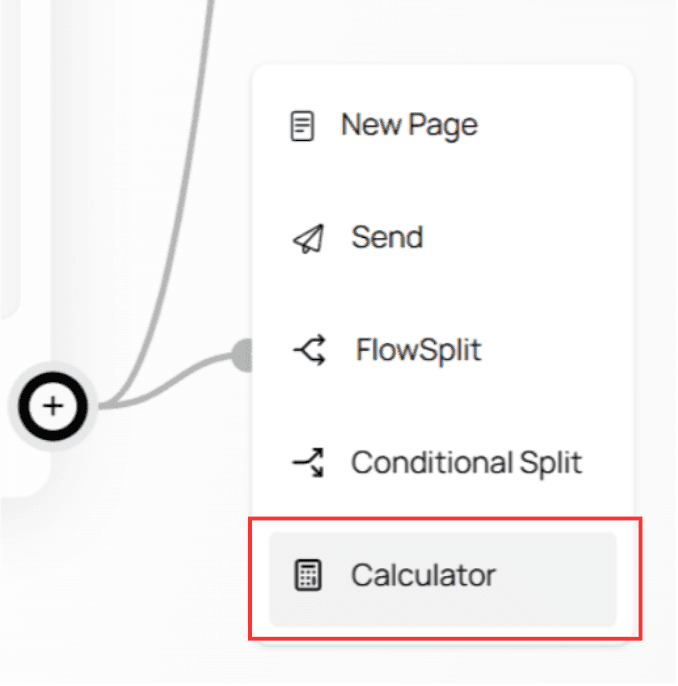
Creating a Variable
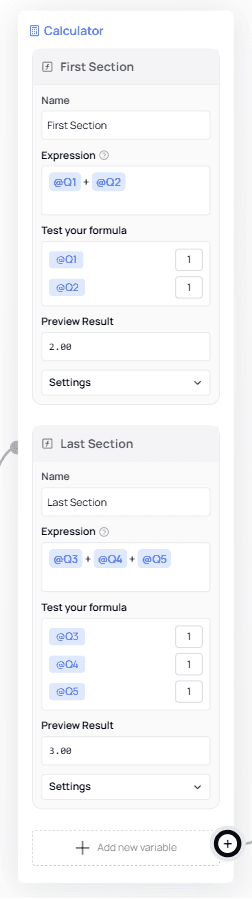
When you add a Calculator Node, it opens a panel where you can define one or more variables.
Each variable represents a formula that you define using supported operators and functions.
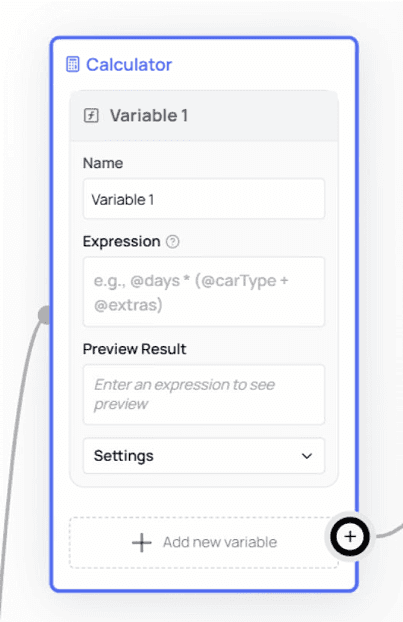

A variable consists of:
Name — a label to help you identify the variable
Expression — the formula you want to calculate
Preview Result — shows a simulated output to confirm your expression works
Settings — additional options for controlling variable behavior
💡 Tip:
You can create multiple variables in the same Calculator Node using Add new variable.
Supported Formulas and Functions
The Calculator Node supports a wide range of operations commonly needed in form logic.
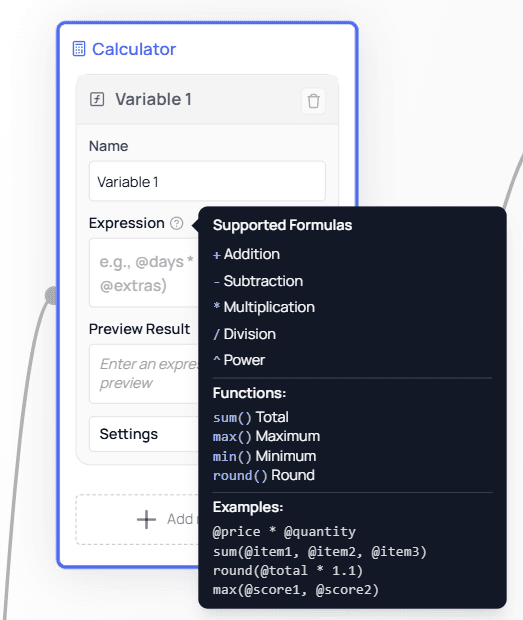
Operators
+ Addition
- Subtraction
* Multiplication
/ Division
^ Power
Functions
sum()— total of multiple valuesmax()— highest valuemin()— lowest valueround()— round numbers to nearest whole or decimal
Examples
The panel also includes inline examples, such as:
⚠️ Important:
When referencing values from other nodes, remember to prefix the variable or field name with @.
Example: Calculating a Total Price
This example shows how the Calculator Node can be used to calculate a dynamic total value.
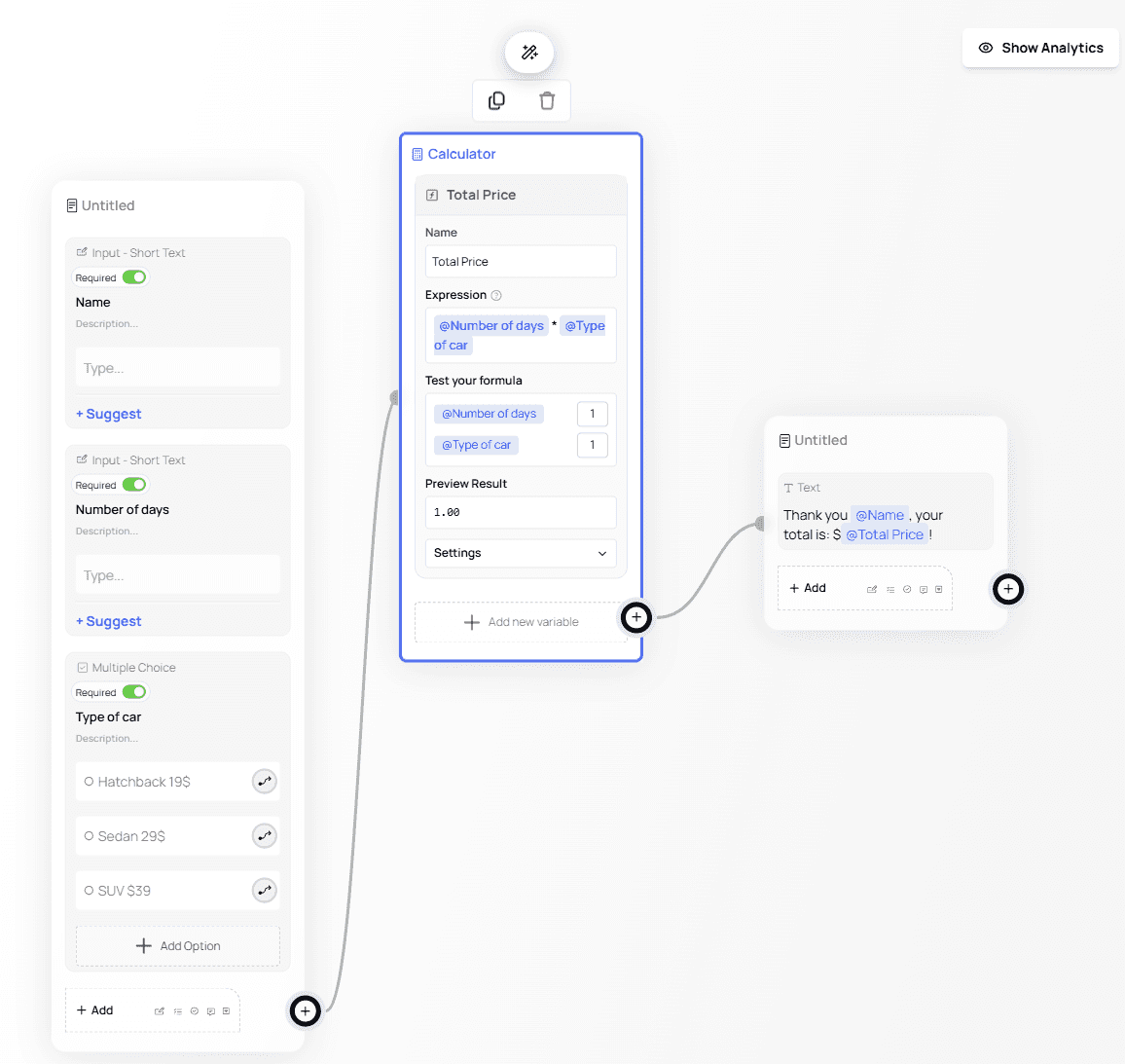
The form collects:
Number of days (Short Text)
Type of car (Multiple Choice)
A calculator variable named Total Price multiplies these two values.
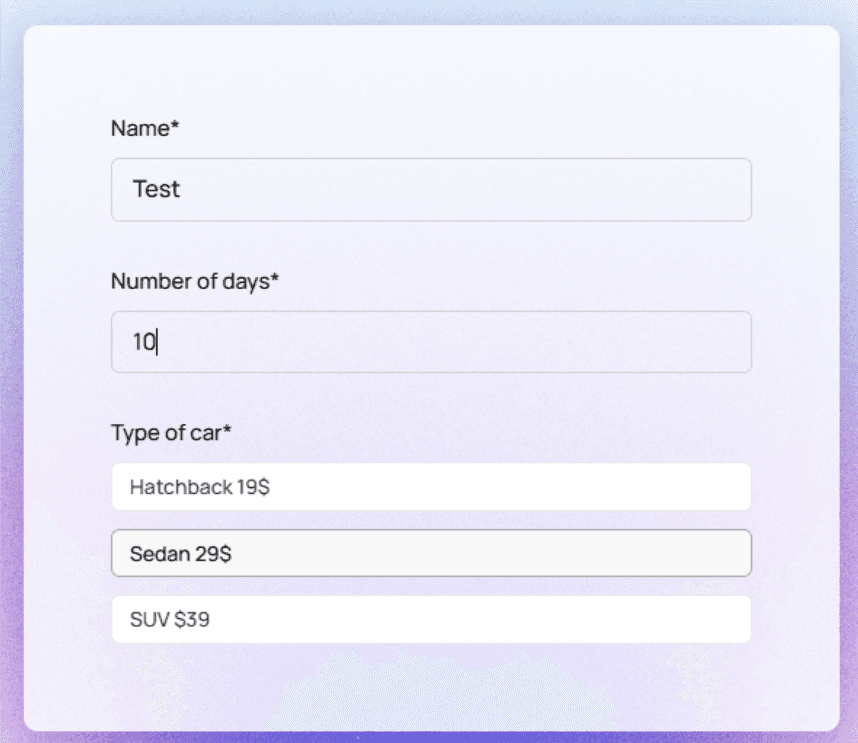
After submission, the calculated value is displayed using a Text node with @Total Price.

💡 Note:
The Calculator Node extracts numeric values directly from option labels (for example,Sedan 29$).
⚠️ Important Limitations
When using numbers inside option labels, keep the following in mind:
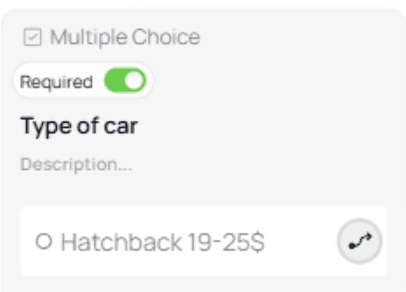
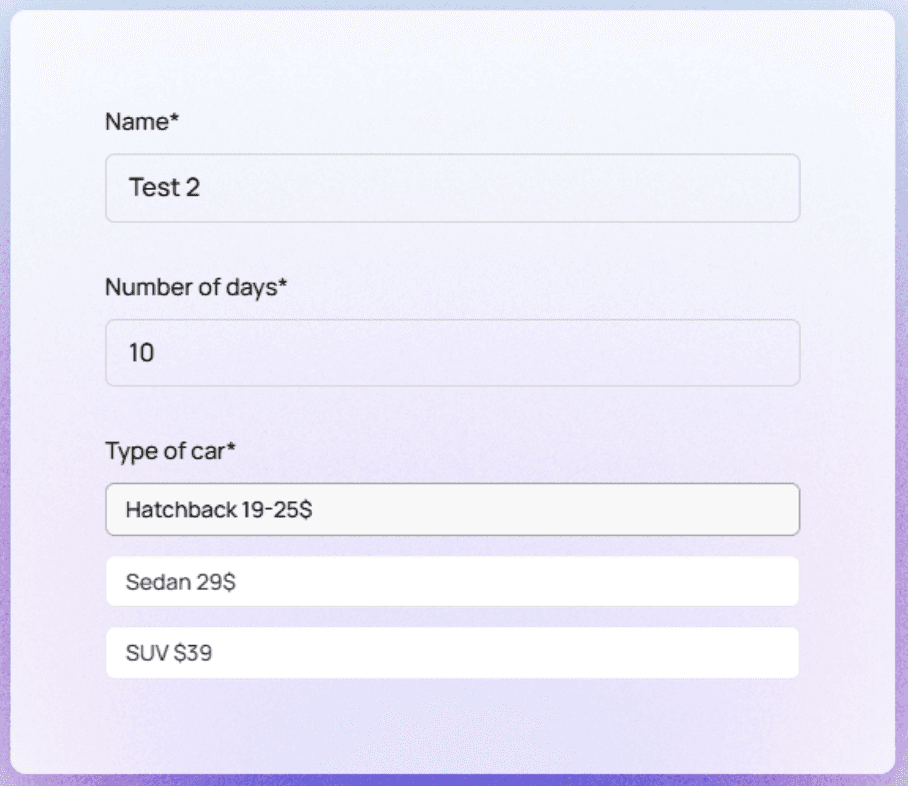
If a price range is used (for example
19–25), the Calculator Node will extract only the last valueIf a dash (
-) is used, the value may be interpreted as a negative numberThe Calculator Node reads numbers from option labels only, not scoring values or currency formatting

💡 Best Practice:
Use a single, clear numeric value in option labels when calculations are required.
Calculator Node vs Numeric Scoring
The Calculator Node works independently and does not use values from Numeric Scoring.
In this example, multiple questions include:
Numbers in option labels
Numeric Scores assigned to each option
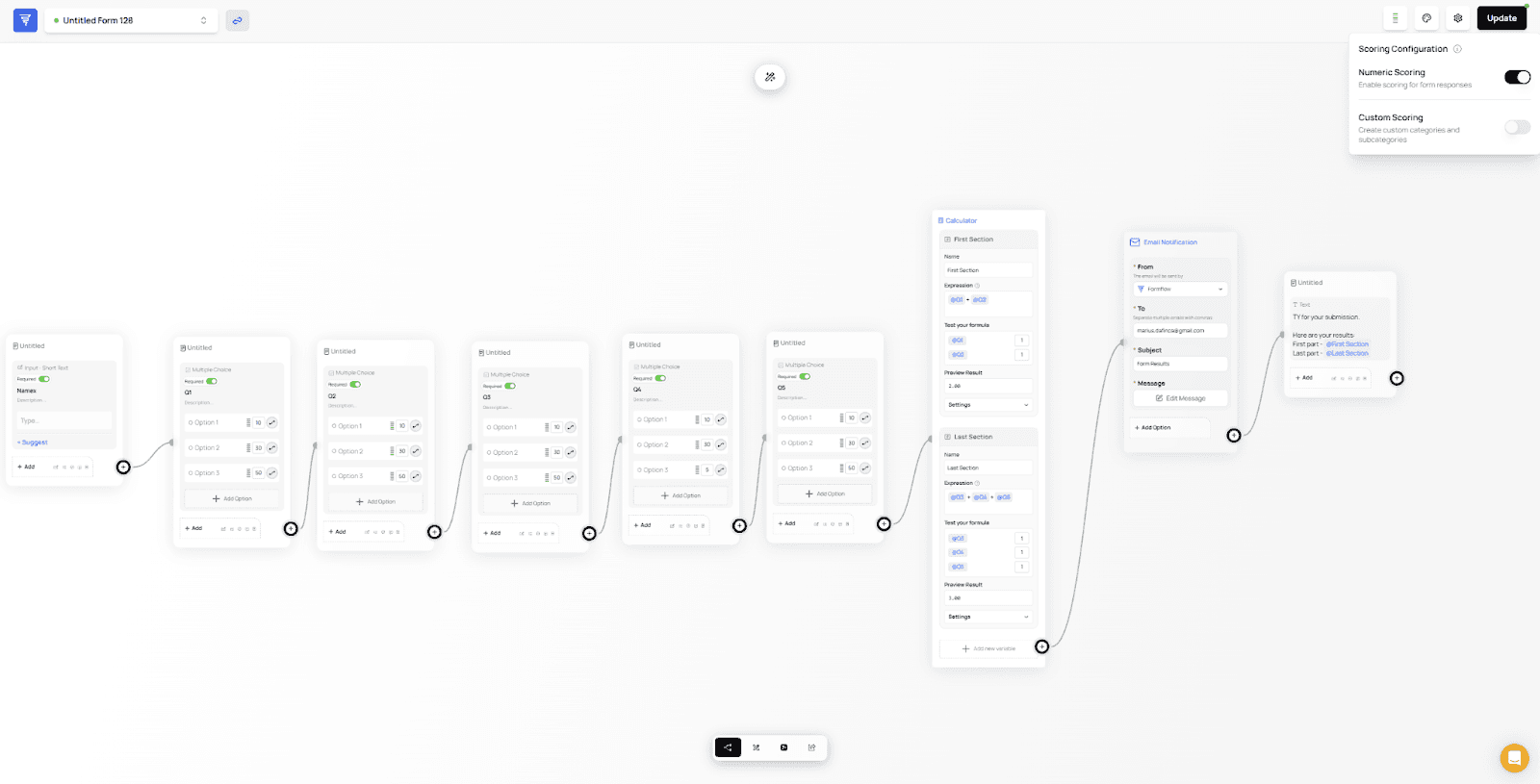
Even when all first options are selected, the Calculator results are based only on the numbers found in the option labels, not the assigned scores.

Learn More & View it in the Use Cases
For a full walkthrough, and examples, refer to the dedicated documentation page here:
👉 Introducing the Calculation Engine
This guide demonstrates practical scenarios—such as pricing calculators and advanced numerical logic—so you can fully leverage the Calculation Engine in your forms.