The Conditional Split node allows you to create advanced branching logic based on user choices. It works with almost all node types under the New Page category and is essential for building personalized form flows.
Default Structure
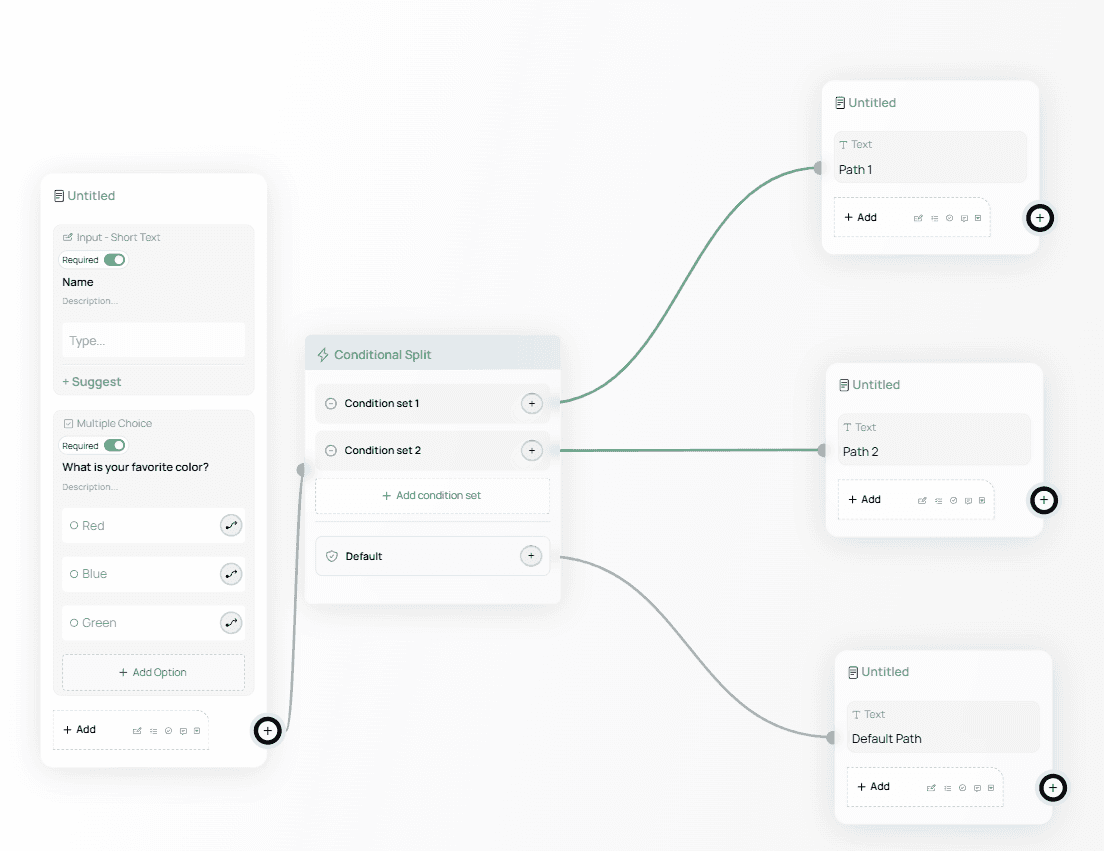
When you first add a Conditional Split node, it will appear like this:
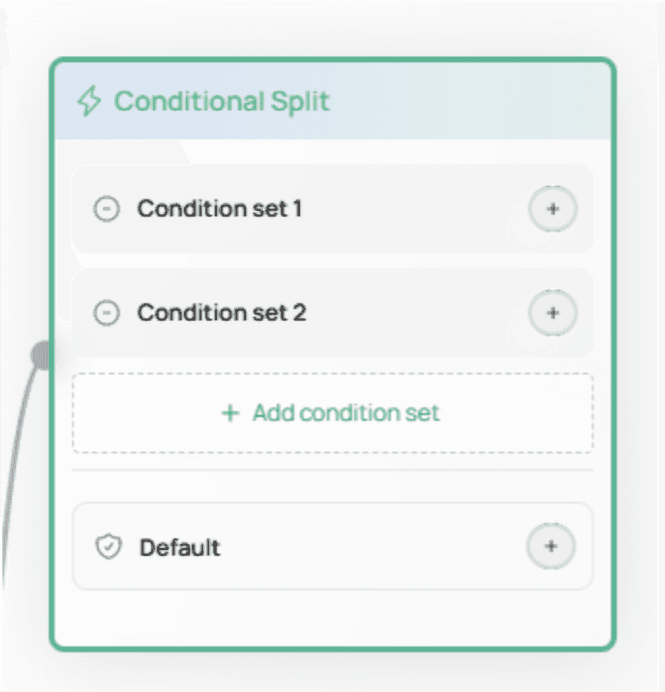
By default, it includes:
Two condition sets
One Default set
The Default set acts as a fallback path — if none of the condition sets match, the user will automatically follow the Default path.
⚠️ Note:
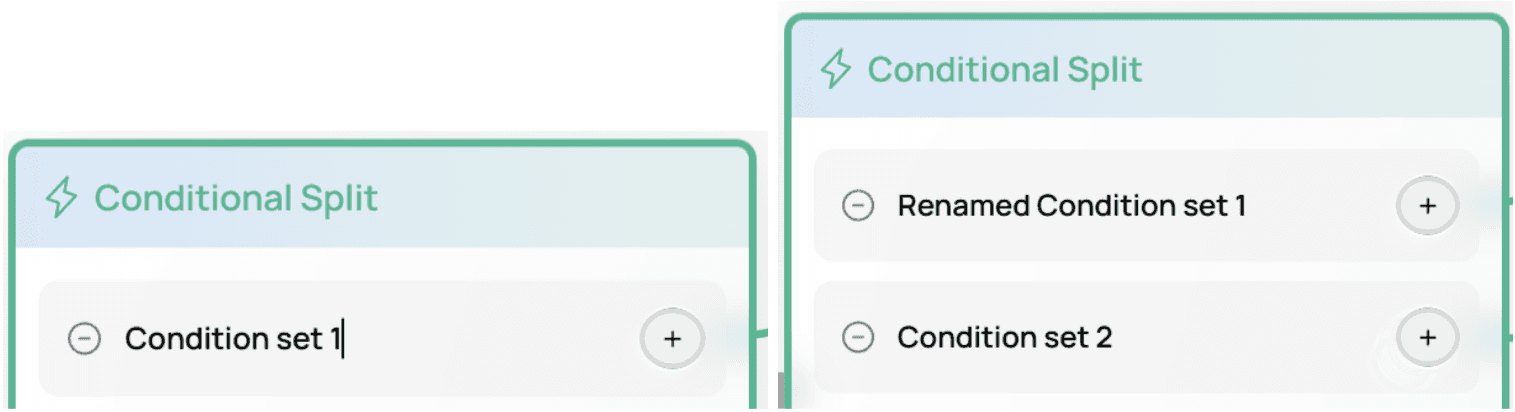
You can rename any condition set except the Default set.
To rename a condition set, simply click its title.
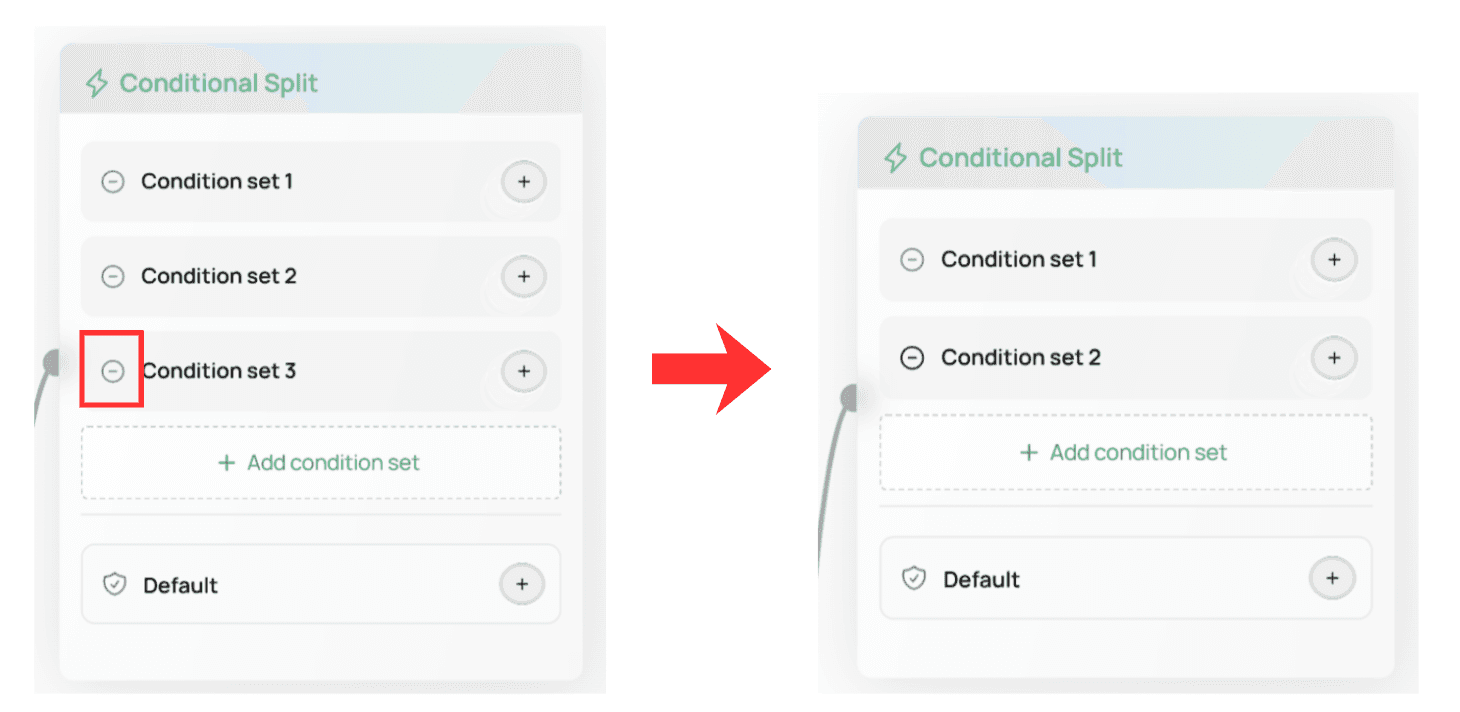
You can add more condition sets using + Add condition set, or remove one using the delete button.
Connecting Nodes to Condition Paths
To route users to different outcomes, click the link icon and drag the connector to any node you want the condition to lead to.

An example with text nodes assigned to each condition path would look like this:
Adding Rules to a Condition Set
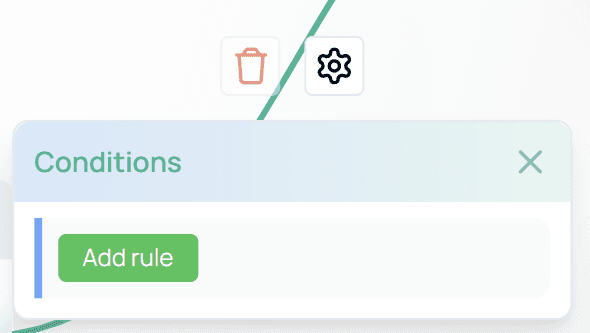
To define which users should follow a particular path, hover over a path and click the gear icon.

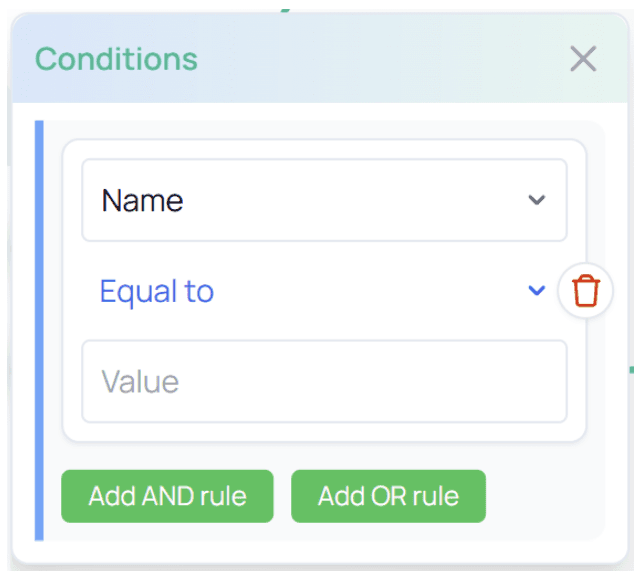
Inside the settings panel, click Add Rule. You will see the available configuration options:
Selecting the Target Question
By default, the rule targets the first question in your form.
You can change this to any named question.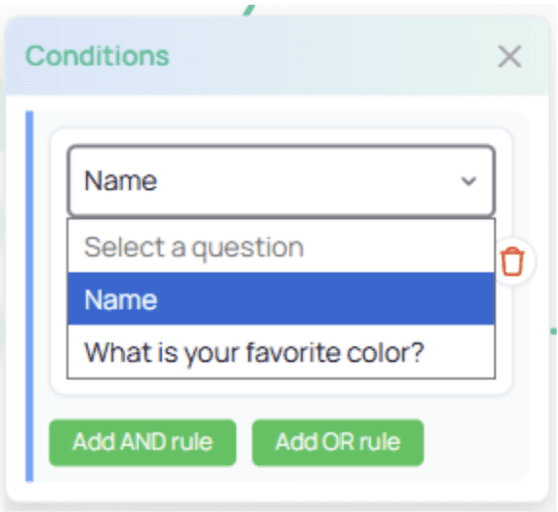
Rule Operators
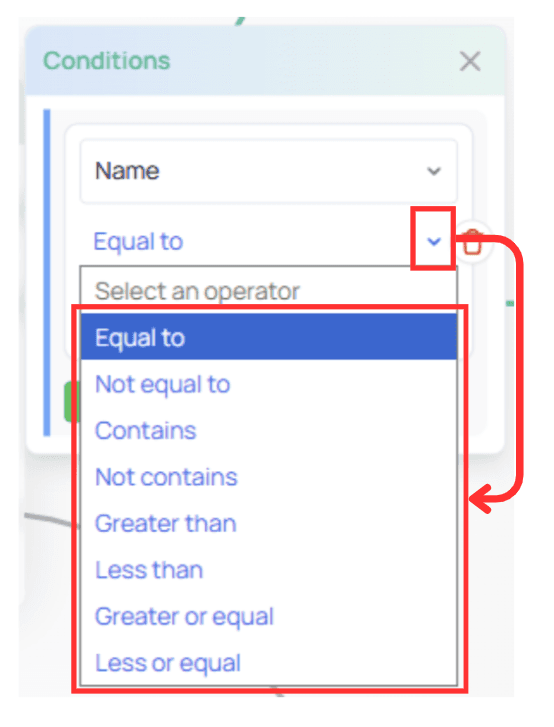
Each question type comes with its own relevant filters (for example: equal to, contains, contains all, greater than, etc.).
Click the blue arrow beside the operator to view all available options.
Example Rules
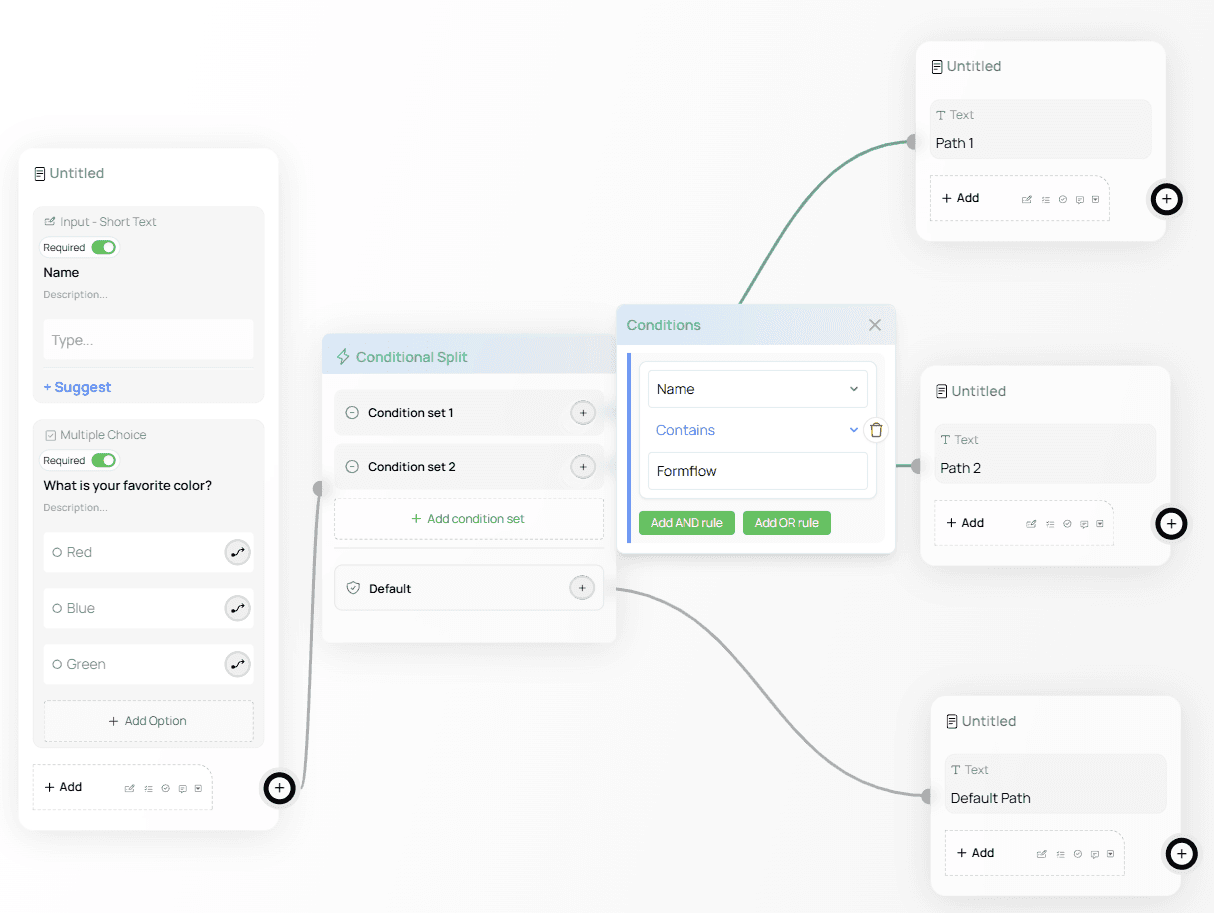
Rule Example for Path 1
Route users whose response contains a particular value.
Rule Example for Path 2
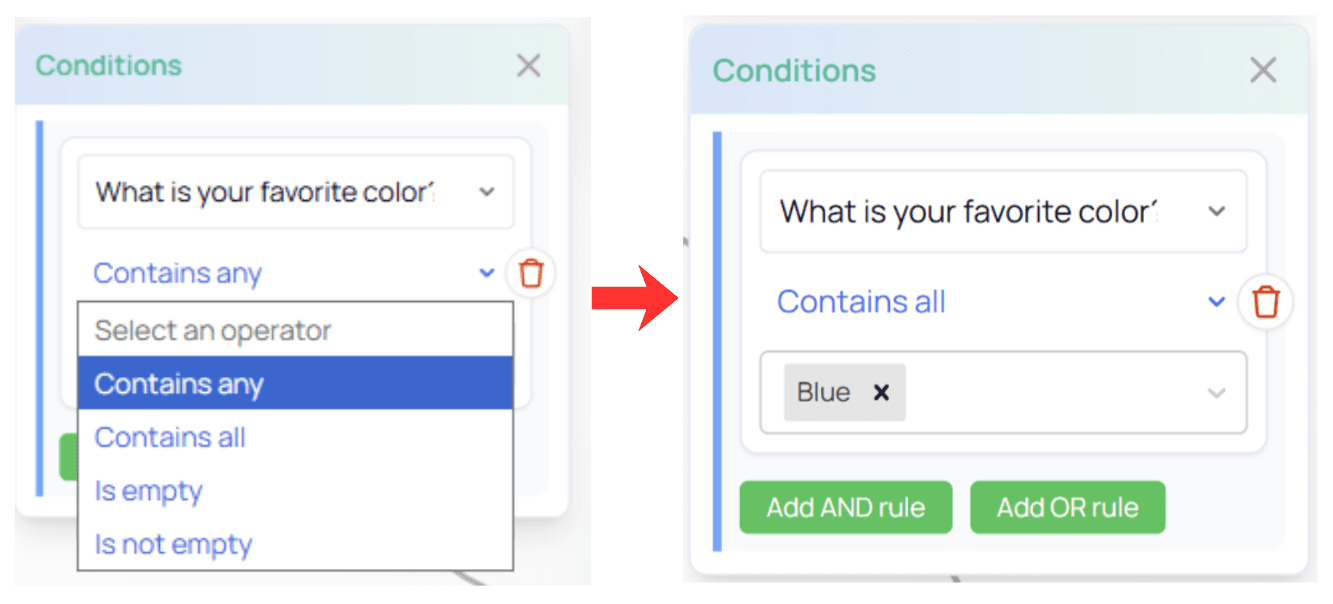
Different question types produce different filter options.
In this example, Contains all means:If the user selects any of the listed values, this condition is met.
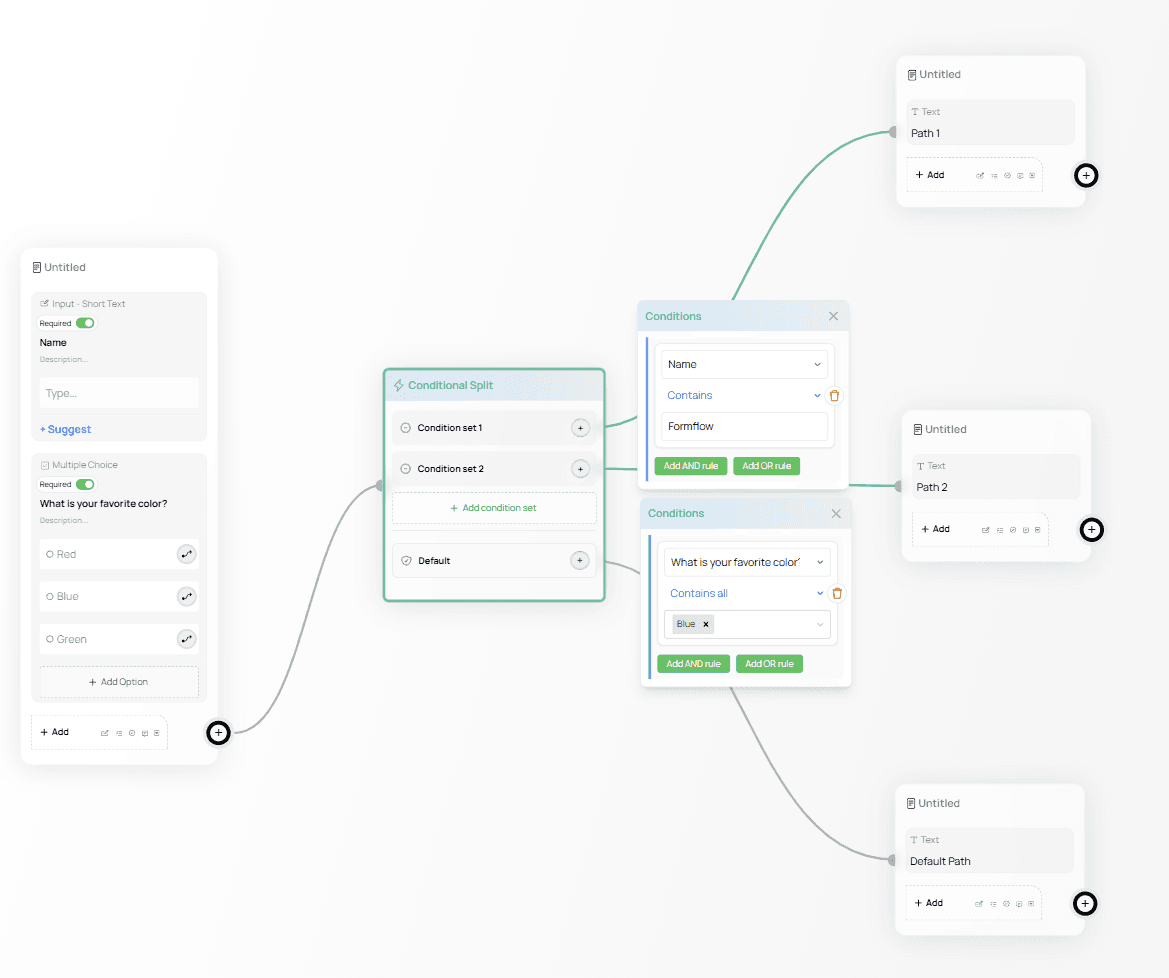
After setting the rules, the Conditional Split structure may look like this:
⚠️ Important: Rule Order Matters
Conditional sets are evaluated from top to bottom.
Example:
If a user meets the conditions for both Path 1 and Path 2,
they will always follow Path 1 because it appears first.
Chaining Multiple Rules
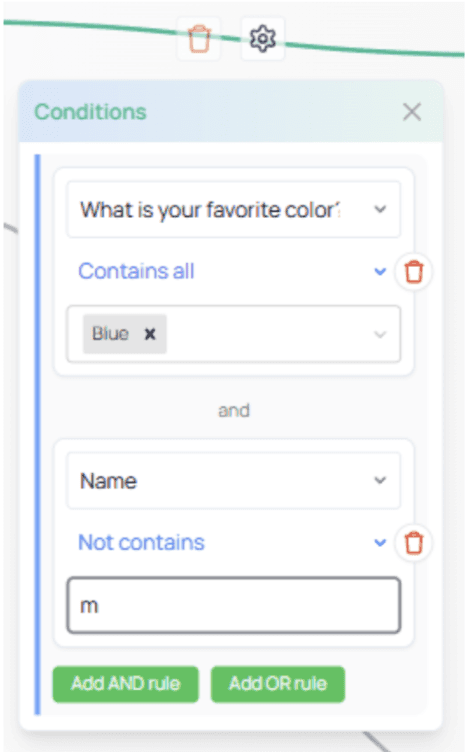
If you need more specific logic, you can chain rules using:
AND — all rules must be true
OR — at least one rule must be true

Example interpretation:
“If the favorite color is Blue AND the name does not contain the letter M…”
The user will only follow this path if both conditions are met.
And that’s it — you now have the essential building blocks for creating dynamic logic with Conditional Splits.
Use these tools to design personalized form experiences based on user behavior, preferences, and responses.