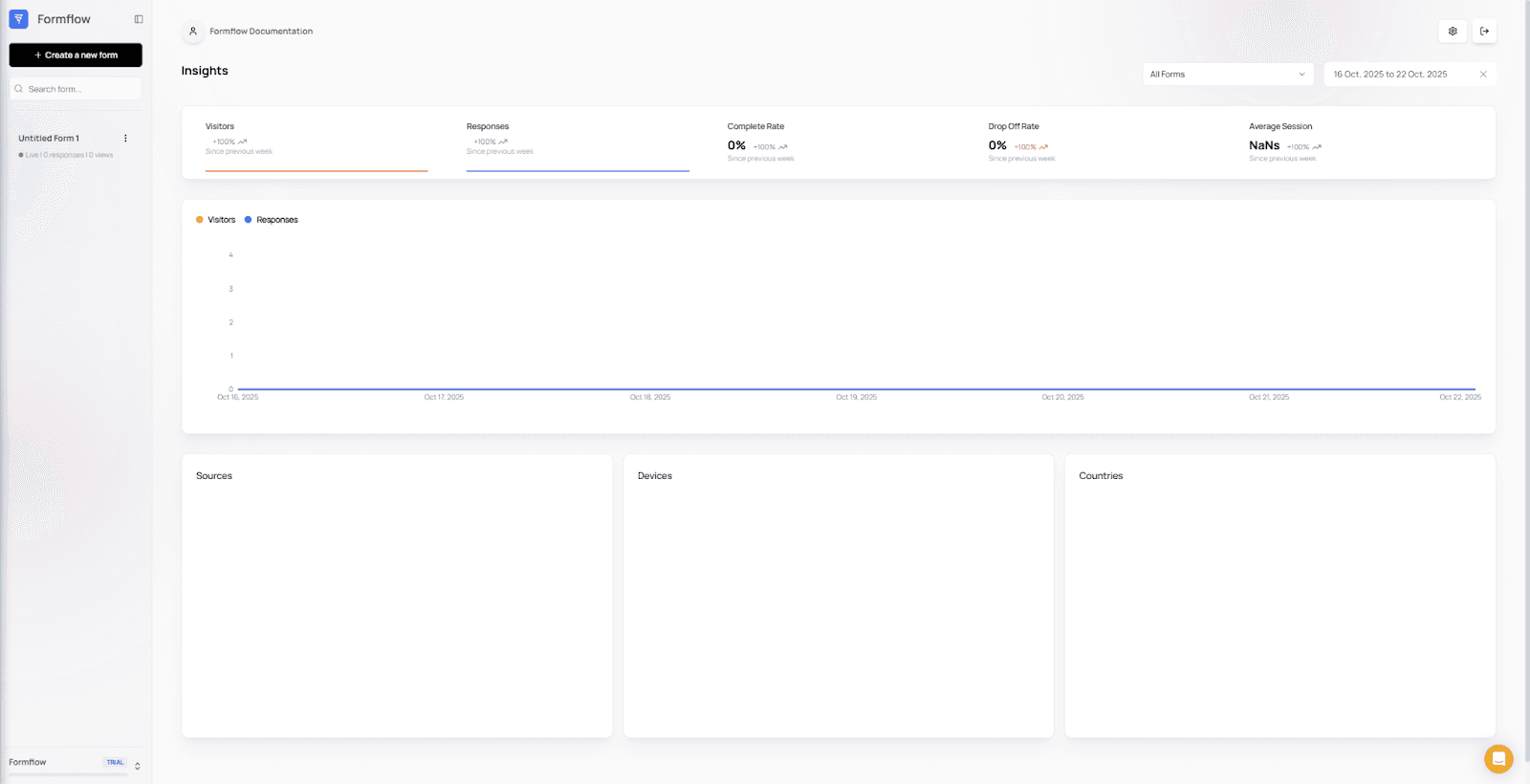
The Dashboard is your main control center for managing all your forms in Formflow.
This page walks you through how the dashboard works, where to find your forms, and how to perform key actions such as editing, renaming, duplicating, and deleting forms.
Accessing the Dashboard
You can access the Dashboard in two ways:
Navigate directly to:
https://app.getformflow.io/ui/manage/dashboardOr click the Formflow icon in the upper-left corner of the sidebar.

This is what the Dashboard looks like:
Selecting a Form
When you select a form from the list on the left side, a panel will open showing all available actions for that form:
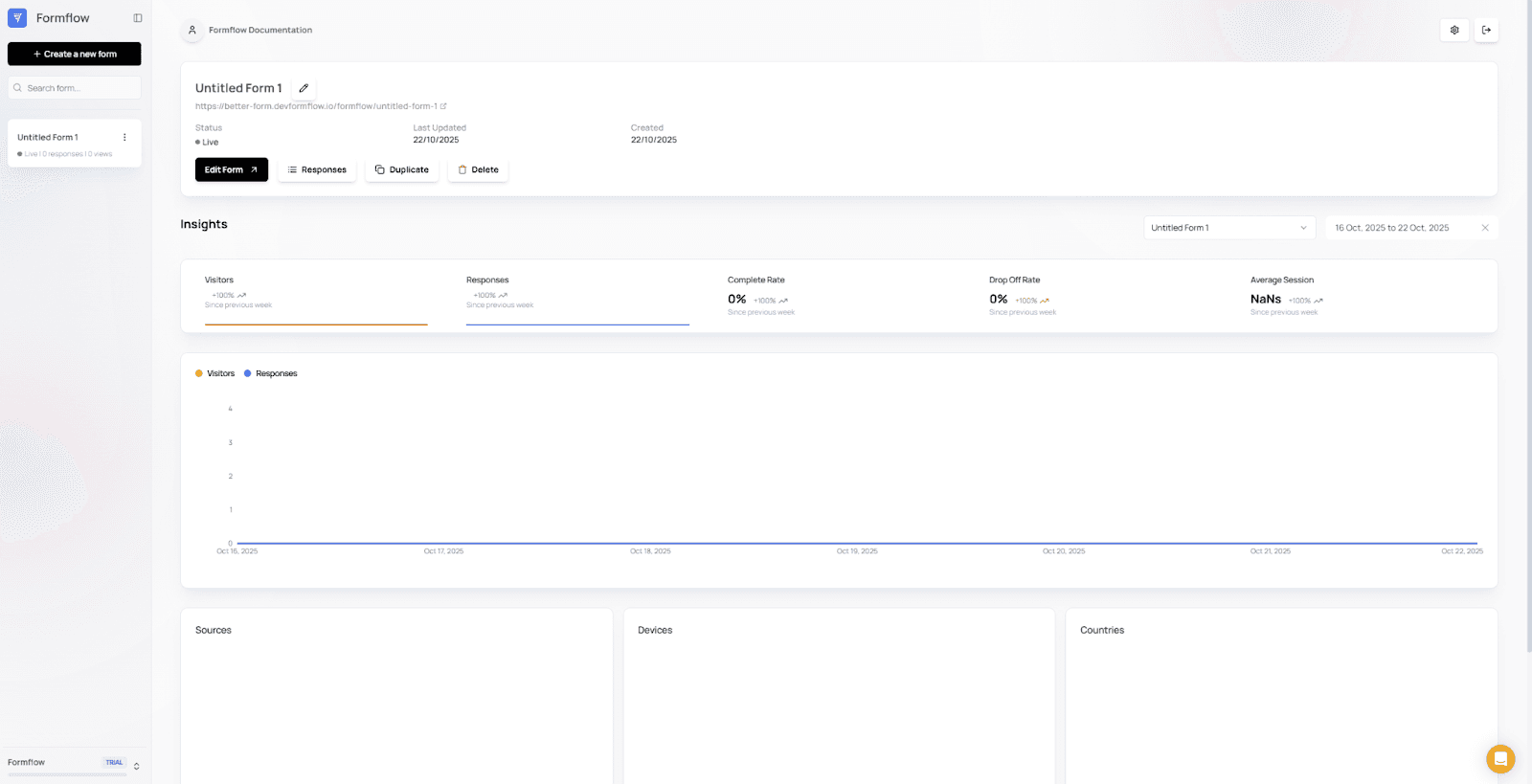
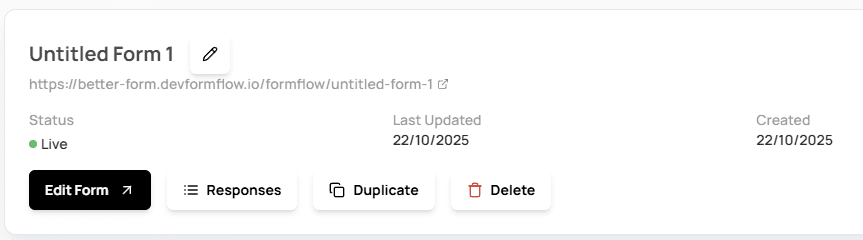
The main actions available are:
Edit
Responses
Duplicate
Delete
Rename
💡 Tip:
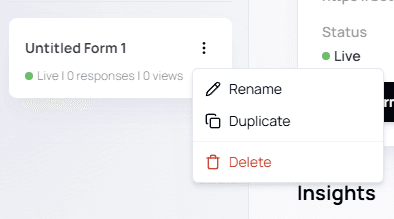
Some form actions can also be accessed from the left panel by clicking the three-dot menu next to the form name.
Form Actions
Below is a breakdown of each action and how to use it.
1. Edit Form
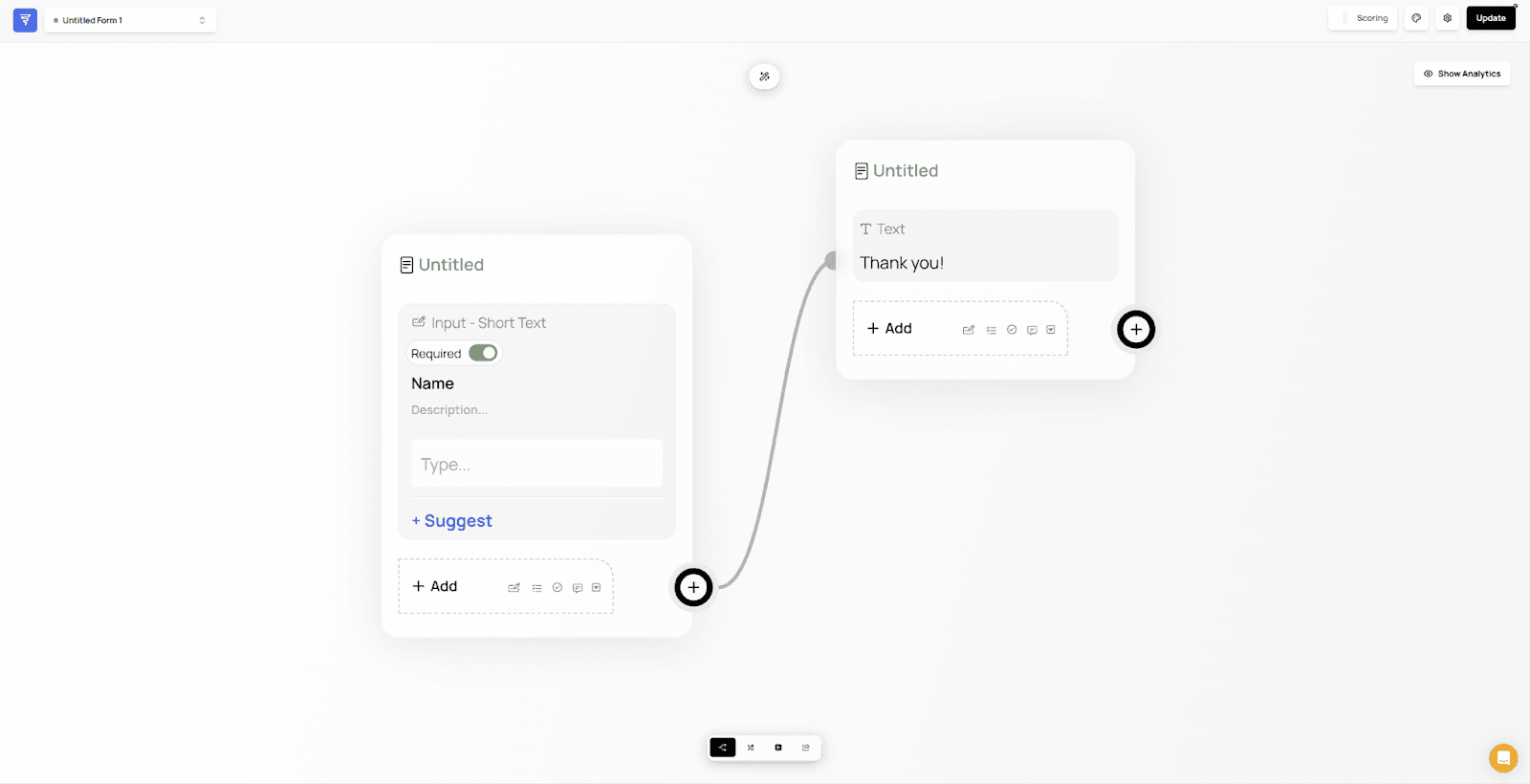
Selecting Edit will take you directly to the Canvas, where you can modify your form’s structure, questions, messages, and logic.
ℹ️ Info:
Any changes you make in the Canvas must be published before they become live for form users.
2. View Responses
Clicking Responses opens the Results tab, where you can view all submissions collected from your form.
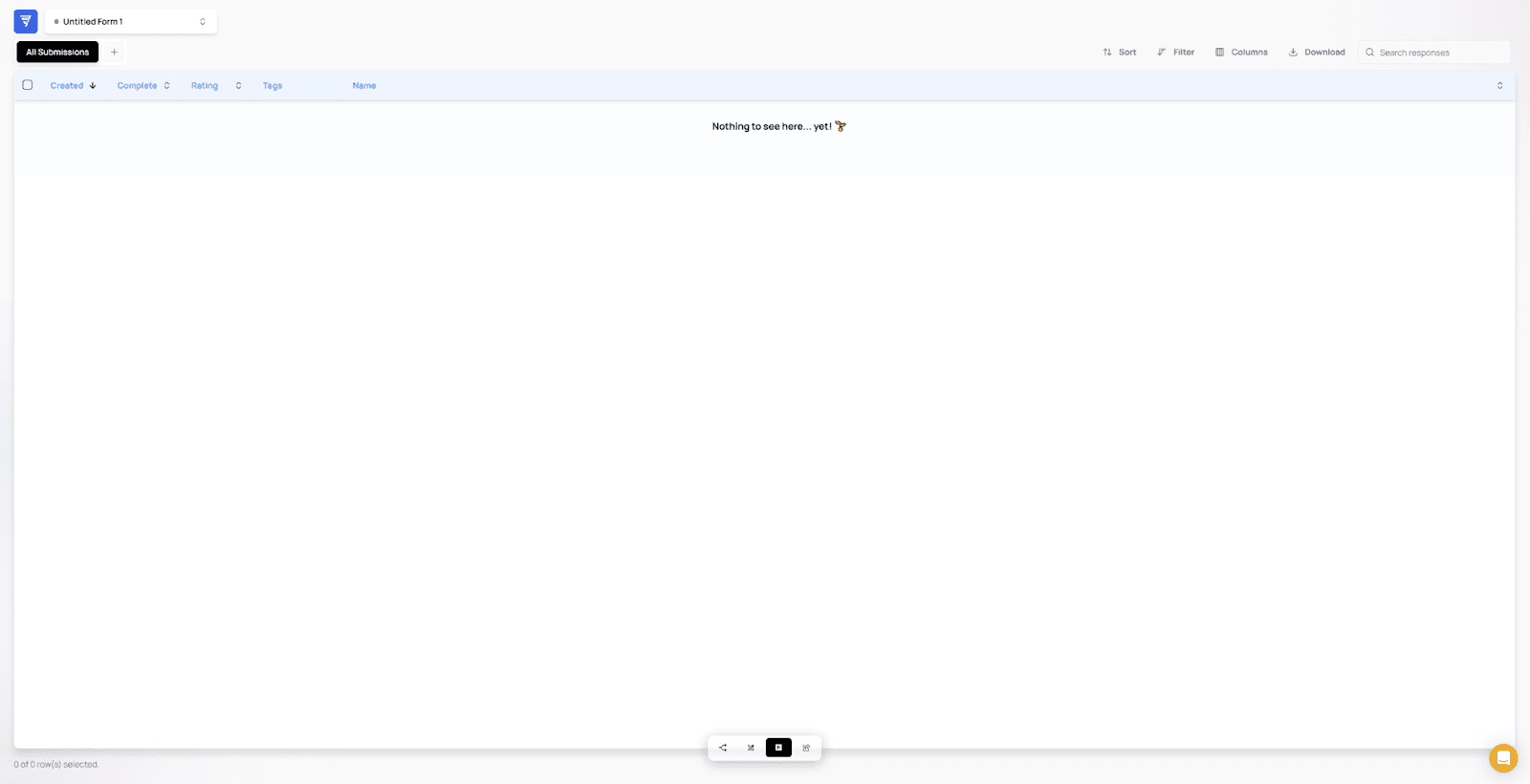
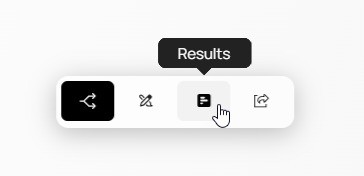
You can also access Responses from inside the Canvas using the island menu at the bottom of the screen.
💡 Tip:
Use the Results tab to review individual entries, export data, and troubleshoot user submissions.
3. Other Form Actions
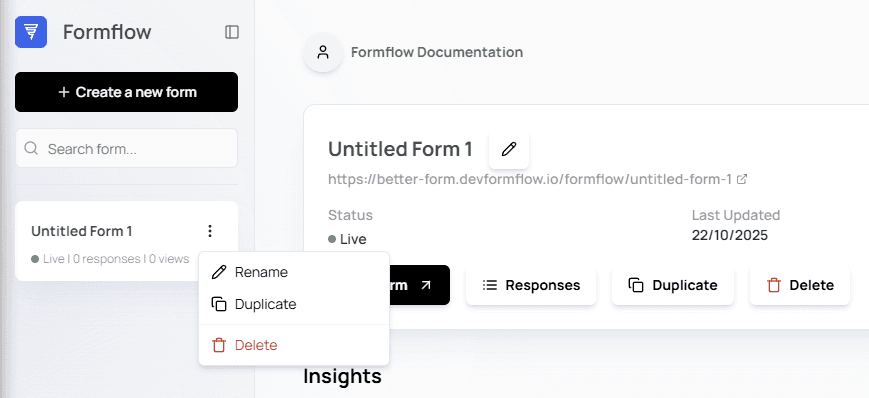
The remaining actions — Rename, Duplicate, and Delete — can be accessed from:
The main form panel
The three-dot menu beside the form name
3.1 Rename Form
You can rename a form in one of two ways:
Click the pencil icon next to the form name in the main panel
Or open the three-dot menu in the sidebar and select Rename
A modal will appear where you can enter the new form name or cancel the action.

💡 Tip:
Using clear and consistent naming helps you stay organized, especially when managing many forms or multiple versions.
3.2 Duplicate Form
Selecting Duplicate will prompt a confirmation modal asking if you want to duplicate the selected form.
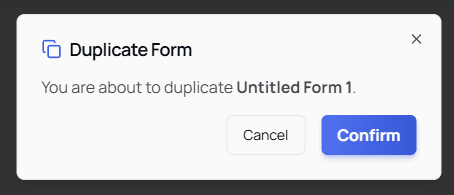
Once confirmed, a new draft version of the form will be created, and a success message will appear.
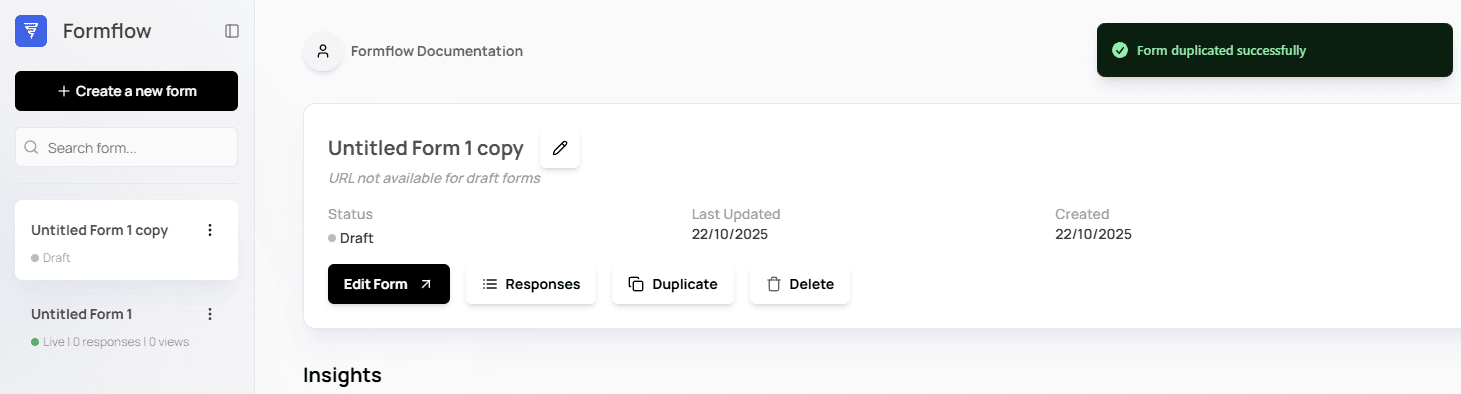
🌱 Use Case:
Duplicating is ideal when you want to create multiple variations of a form or experiment with new logic while keeping the original version intact.
3.3 Delete Form
When selecting Delete, a confirmation modal will appear requiring you to type the exact name of the form you wish to delete.
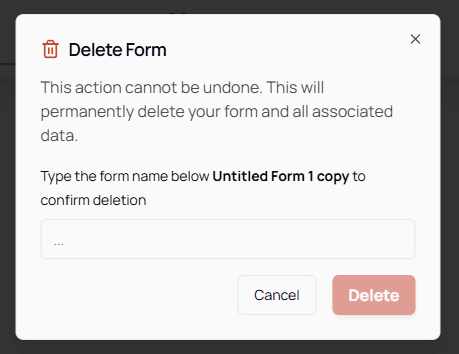
(Example deletes the copy created earlier)
Once the name is typed correctly, the Delete button becomes available.

After completing the deletion, the form will be permanently removed and a success message will appear.

⚠️ Warning:
Deleting a form is permanent and cannot be undone.
Make sure to duplicate the form first if you want to keep a backup version.
🎉 You’re Now Familiar With the Dashboard!
You now know how to:
Access the dashboard
Select and manage forms
Edit forms
View responses
Rename, duplicate, and delete forms
The Dashboard is designed to give you quick access to everything you need to manage your forms efficiently.