The Form Settings panel is used to manage your form’s identity, URL, branding, and behavior across the Formflow app.
You can access it from inside the Canvas by clicking the gear icon in the top-right corner.
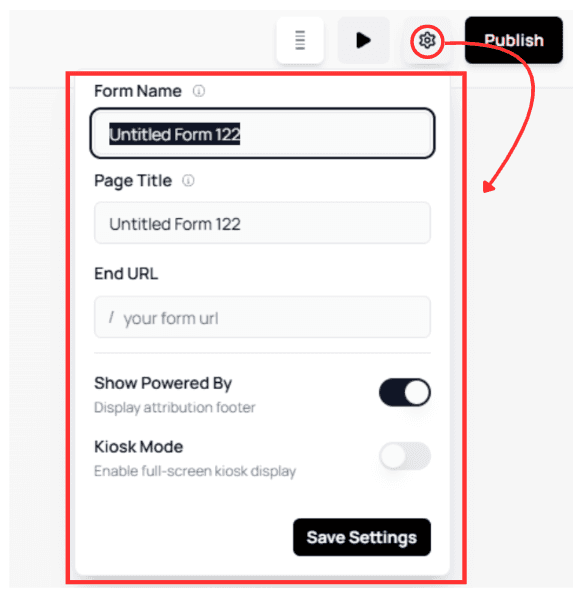
Form Identity & URL
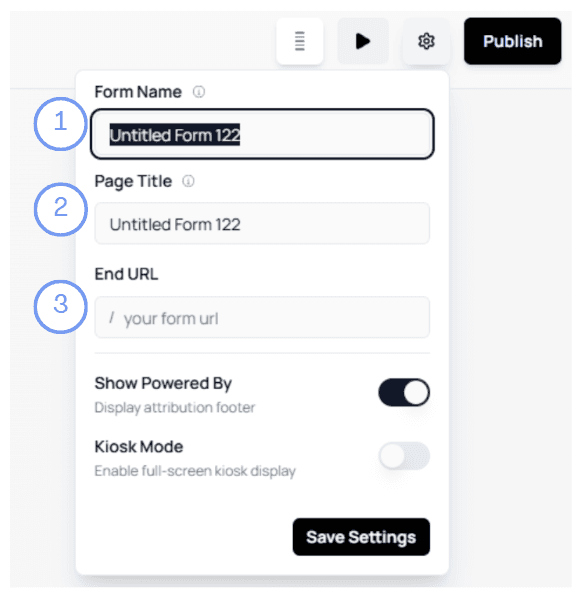
From the Settings panel, you can update the following core fields:
Form Name
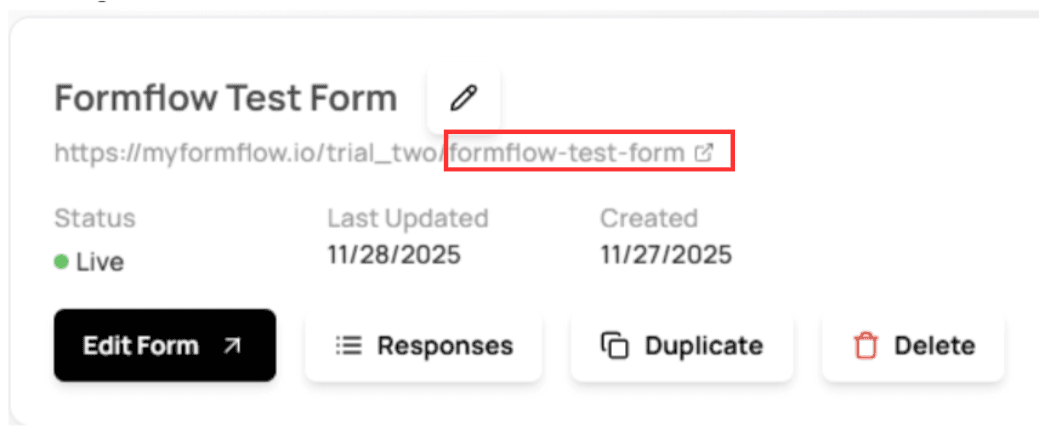
The Form Name works the same way as the Rename option in the Dashboard.
It is used internally and appears throughout the app, including the Dashboard, Responses, and Share pages.Page Title
The Page Title controls the text shown in the browser tab when users open your form.End URL
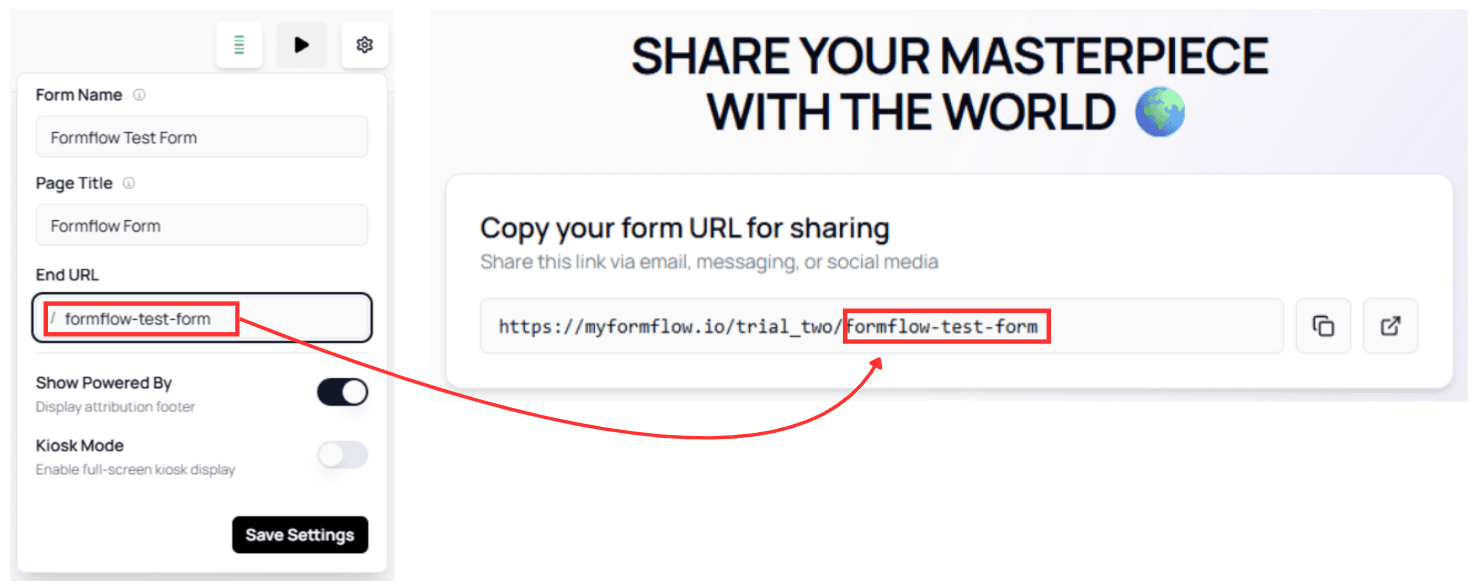
The End URL allows you to customize the final part of your form’s public link.After updating these fields, click Save Settings to apply the changes.
How These Changes Are Applied
Once saved:
The form URL in the Share page updates to reflect the new End URL
The browser tab title displays the Page Title you specified
The Form Name is updated everywhere in the app, including the Dashboard
💡 Tip:
Use clear and descriptive names to make managing multiple forms easier.Branding & Behavior Controls
Below the form details, you’ll find two important toggles that affect how your form behaves for users.
Powered By
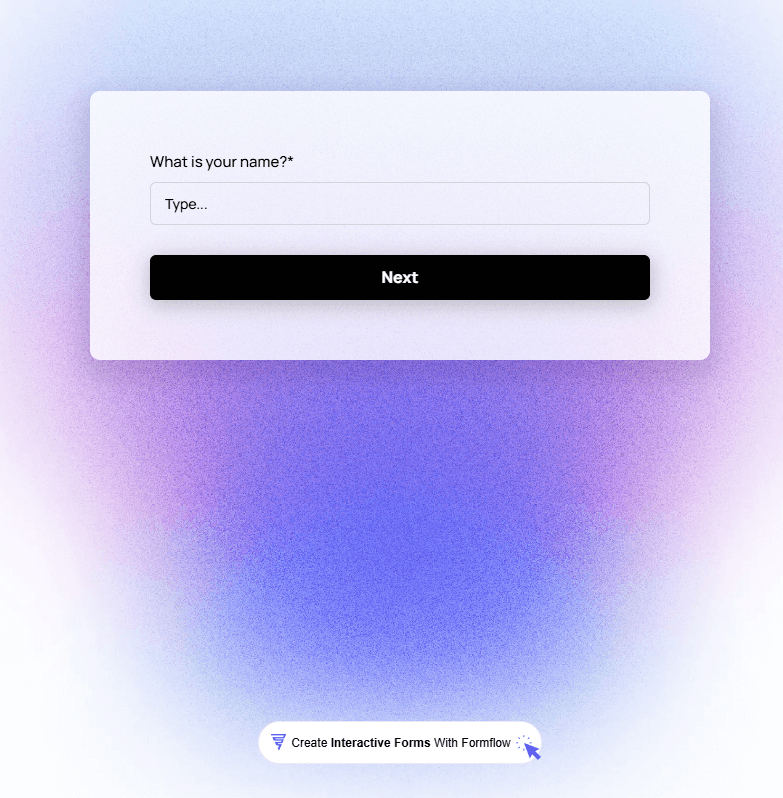
This toggle controls whether the Formflow watermark appears at the bottom of your form.
It is enabled by default.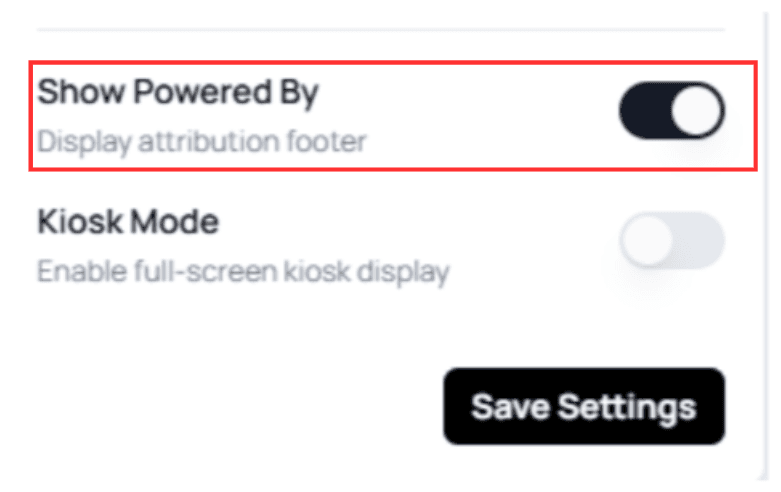
ON → Formflow watermark is visible
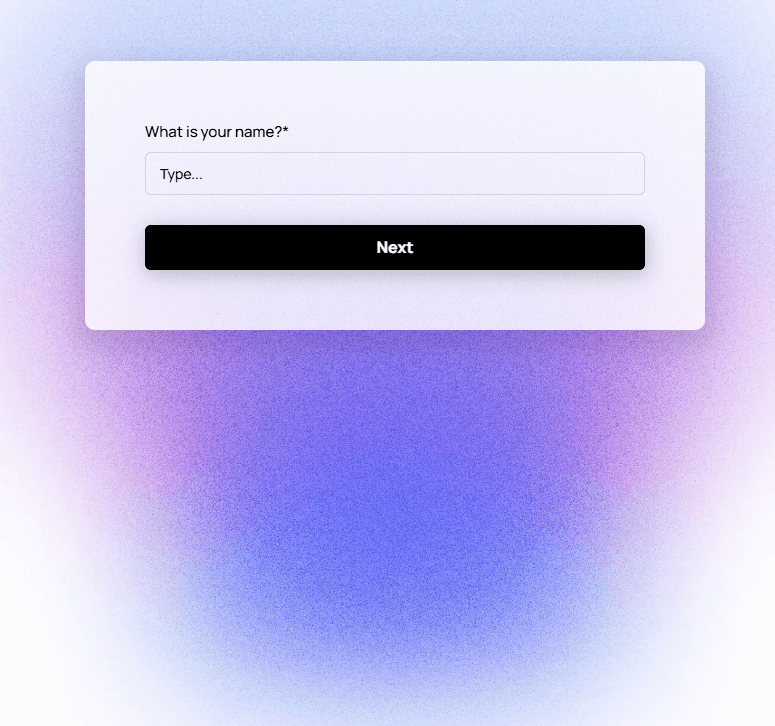
OFF → Watermark is removed
⚠️ Note:
Availability of this option may depend on your subscription plan.Kiosk Mode
Kiosk Mode is designed for use cases where a form is completed multiple times on the same device (for example, events, kiosks, or shared tablets).
When enabled:
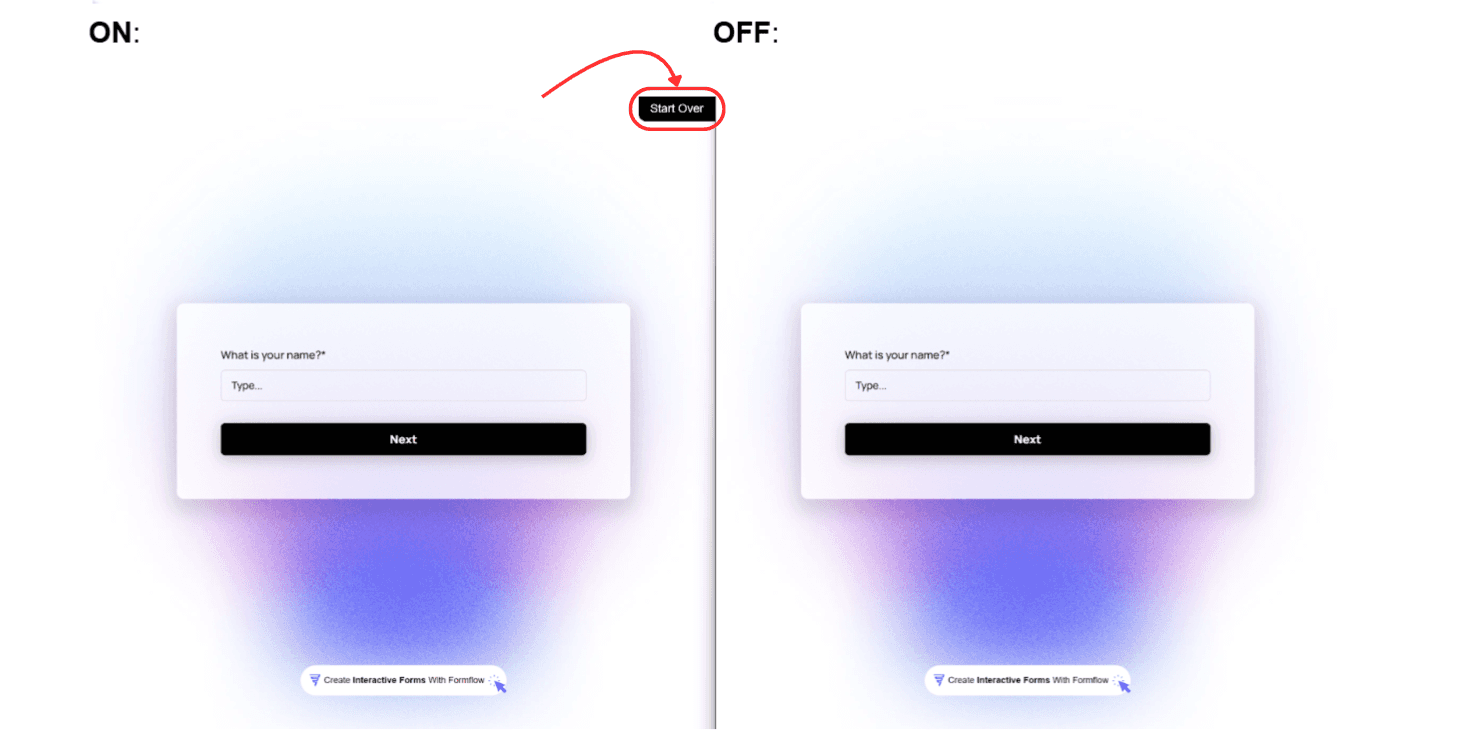
A Start Over button appears in the top-right corner of the form
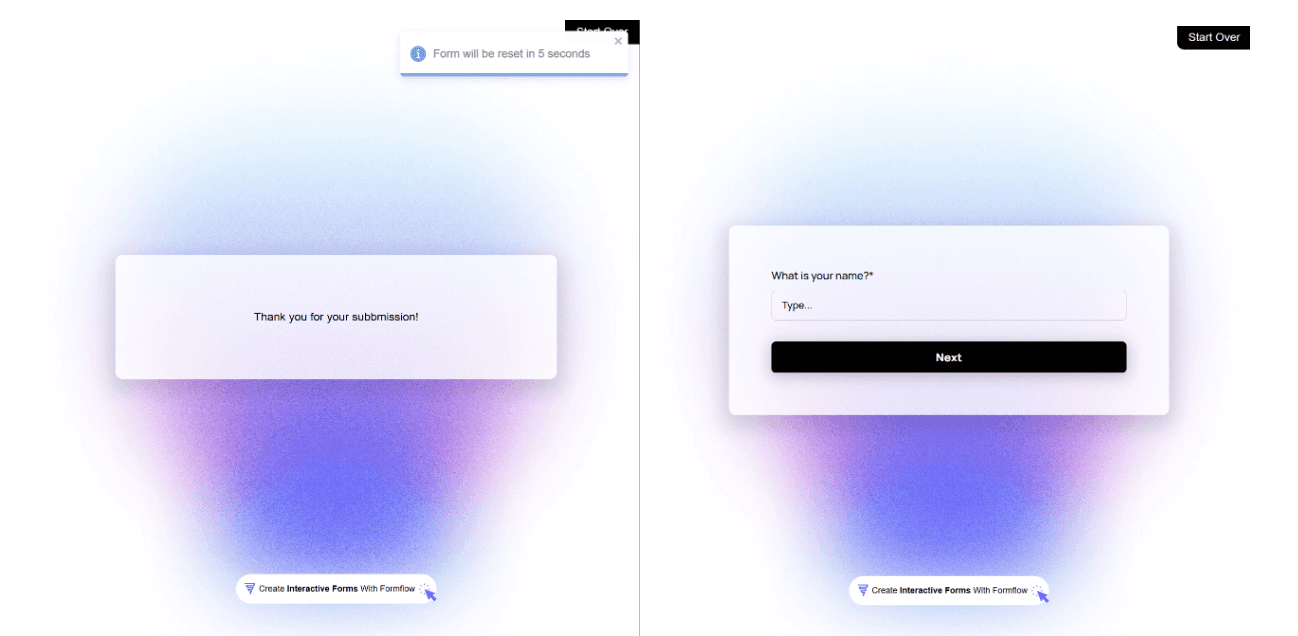
The form automatically resets after 5 seconds once submission is complete
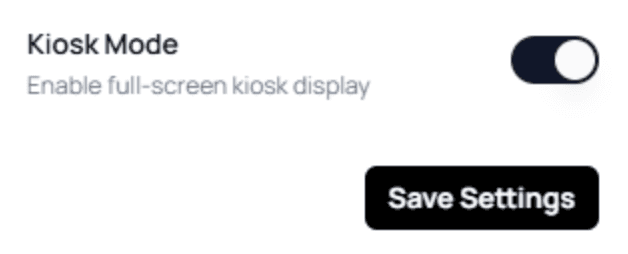
ON → Start Over button visible
OFF → No reset option
Why Use Kiosk Mode?
By default, Formflow caches form progress so users can return later.
However, this can result in users interacting with an outdated version of the form.With Kiosk Mode enabled:
Users can reset the form at any time
The form refreshes automatically after submission
Users always interact with the latest published version
💡 Best Practice:
Enable Kiosk Mode for public-facing forms, shared devices, or high-traffic environments.
🔗 Related Settings
Some form options are also available in Page Settings, which focuses on how your form page is presented and behaves for respondents.
If you’re looking to control page-level behavior such as URL structure, branding visibility, or kiosk behavior from a page-experience perspective, see:
👉 Page Settings