On the canvas menu, click FlowSplit
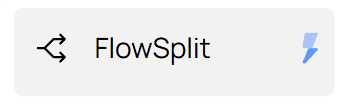
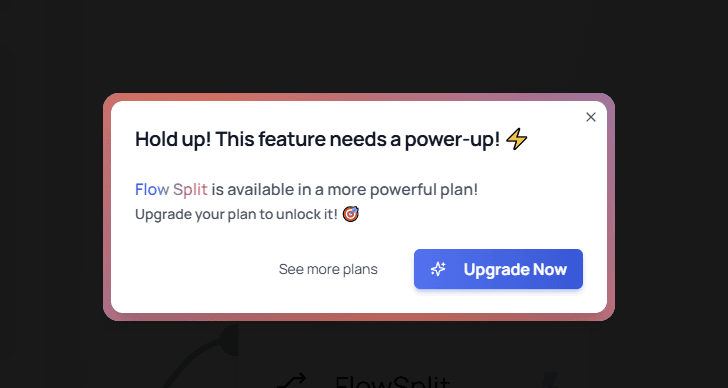
Flowsplit is used for A/B testing, it provides multiple paths where the user is directed based on the percentage you configured. When you first encounter “FlowSplit” it might have a lightning icon next to it, that represents the fact that this feature is a premium feature, and your current plan does not include it. If you try to use it, you will be prompted to upgrade.
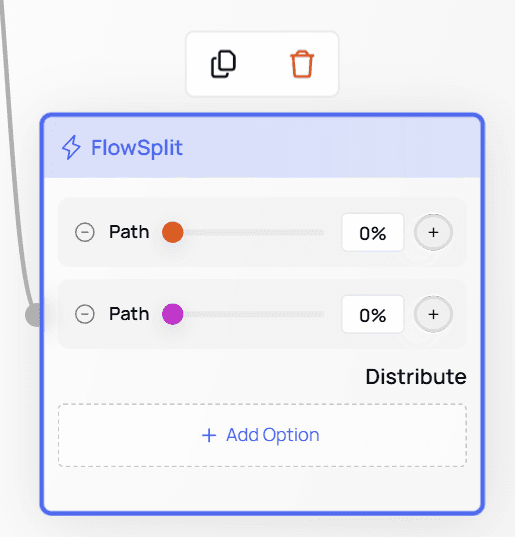
When first adding the FlowSplit node, it will look like this:
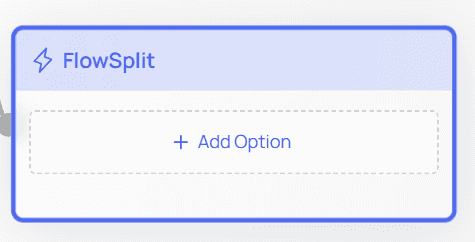
Clicking the “+ Add Option” button will add a path, you can add as many paths as you want.
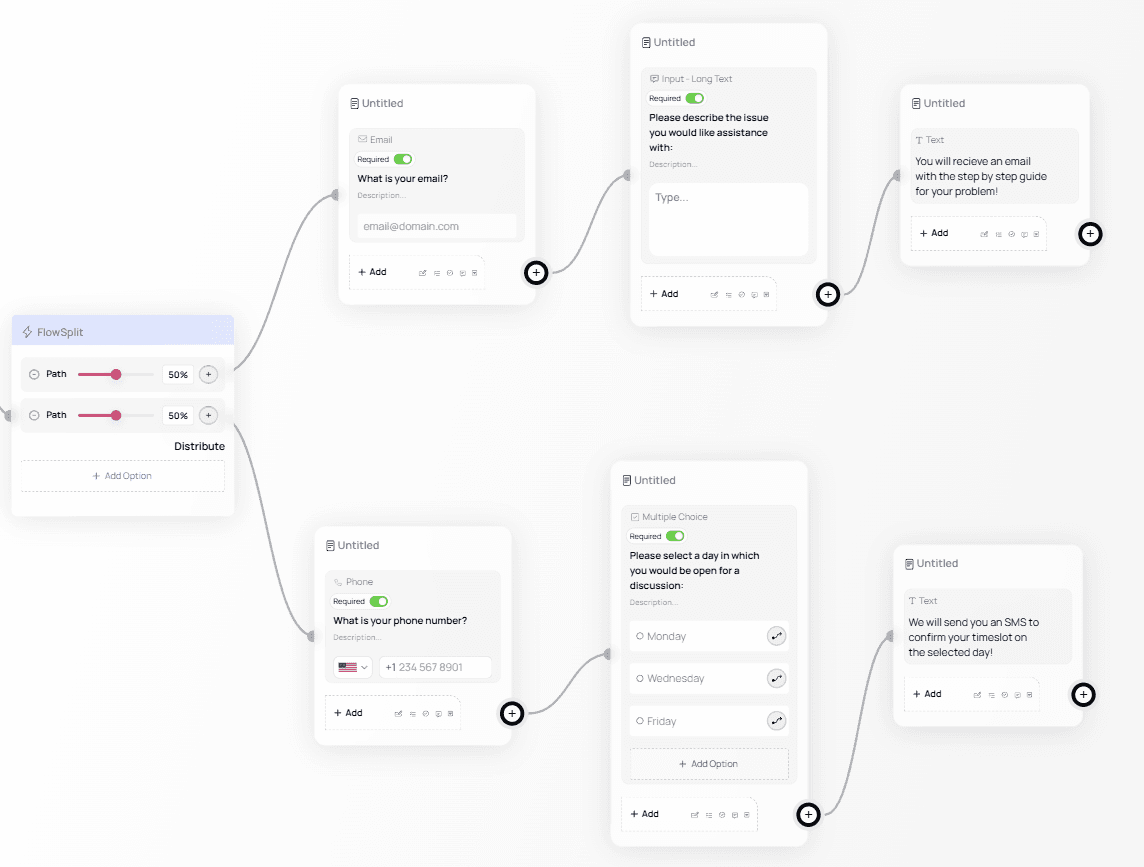
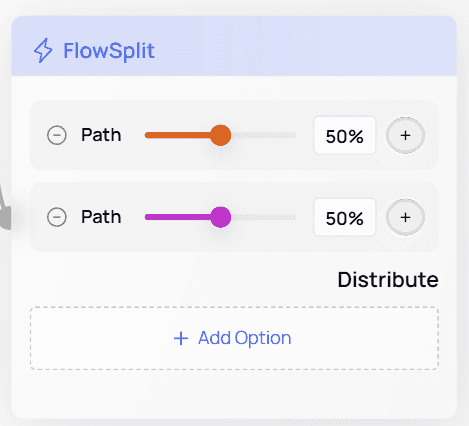
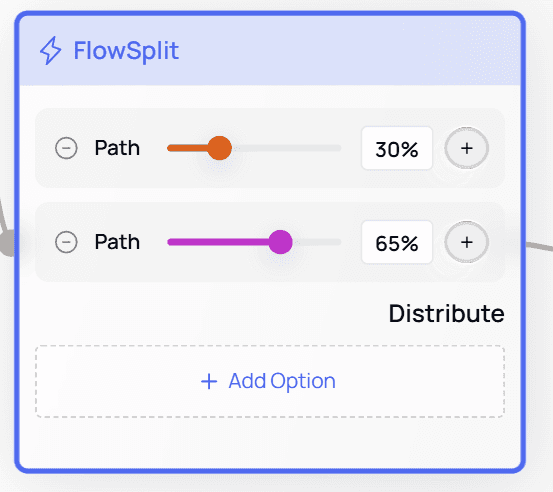
When more than one path is present, the “Distribute” button will become available, it distributes the % equally to the number of paths you have(In our case 50-50). You can customize the % manually using the sliders.
Clicking the

button on the left hand side of the Path will remove that specific path. Clicking the

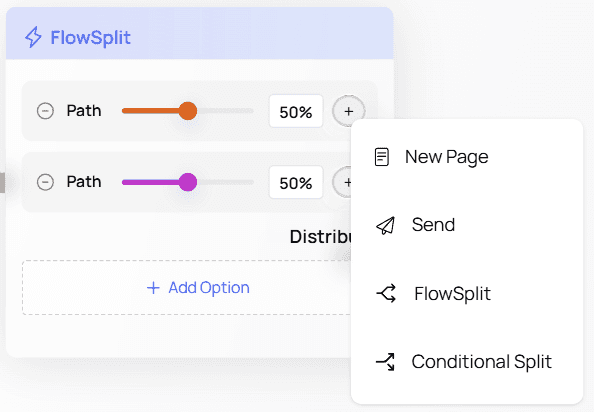
button, will open the menu to add a new node, your other option is to click then drag and drop to an existing node in order to link it to that path.
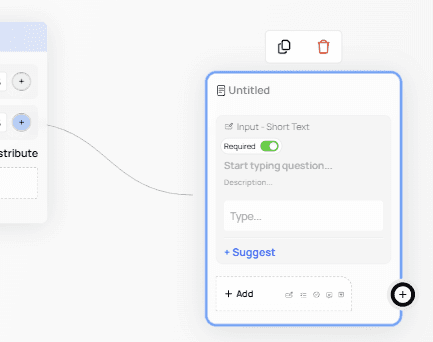
We made 2 paths, one where the user will be contacted via email, the other via SMS: