The Responses page allows you to view, filter, download, and organize all submissions collected through your form.
You can access this page in two ways:
From the Dashboard
Select a form → click Responses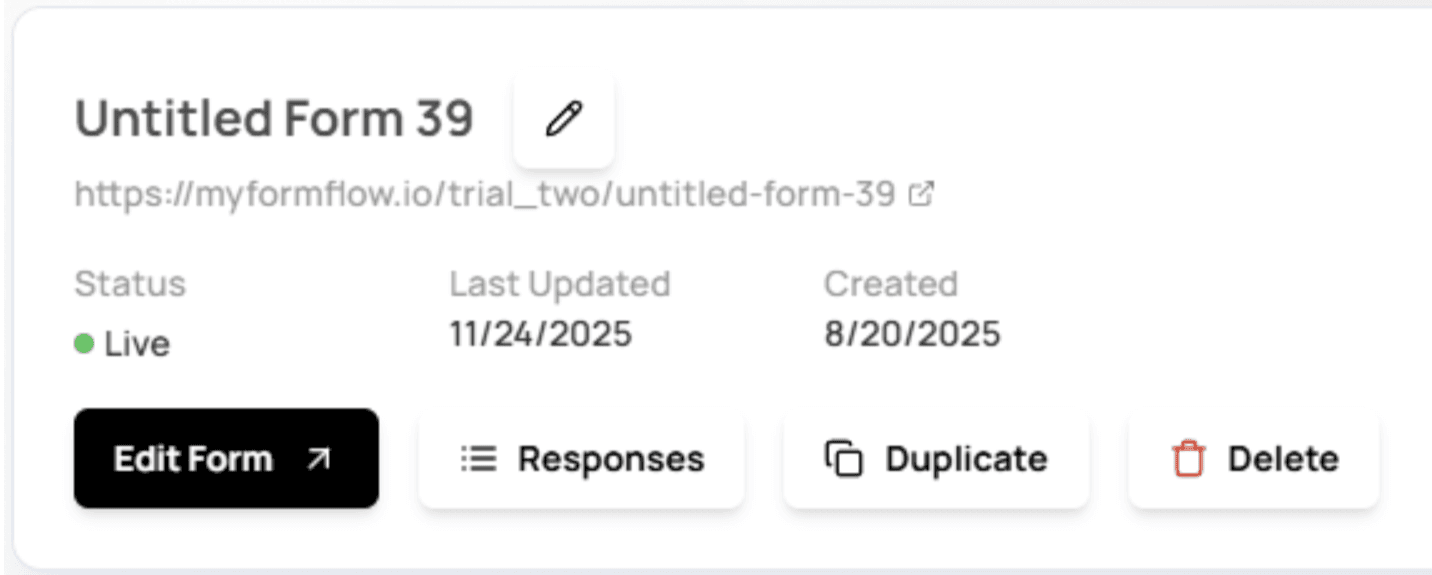
From inside the Canvas
Use the island menu → select Results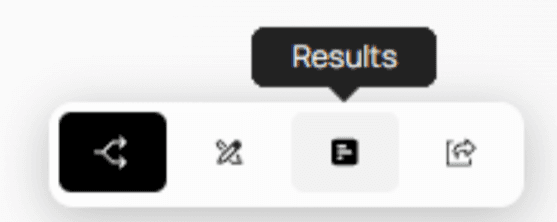
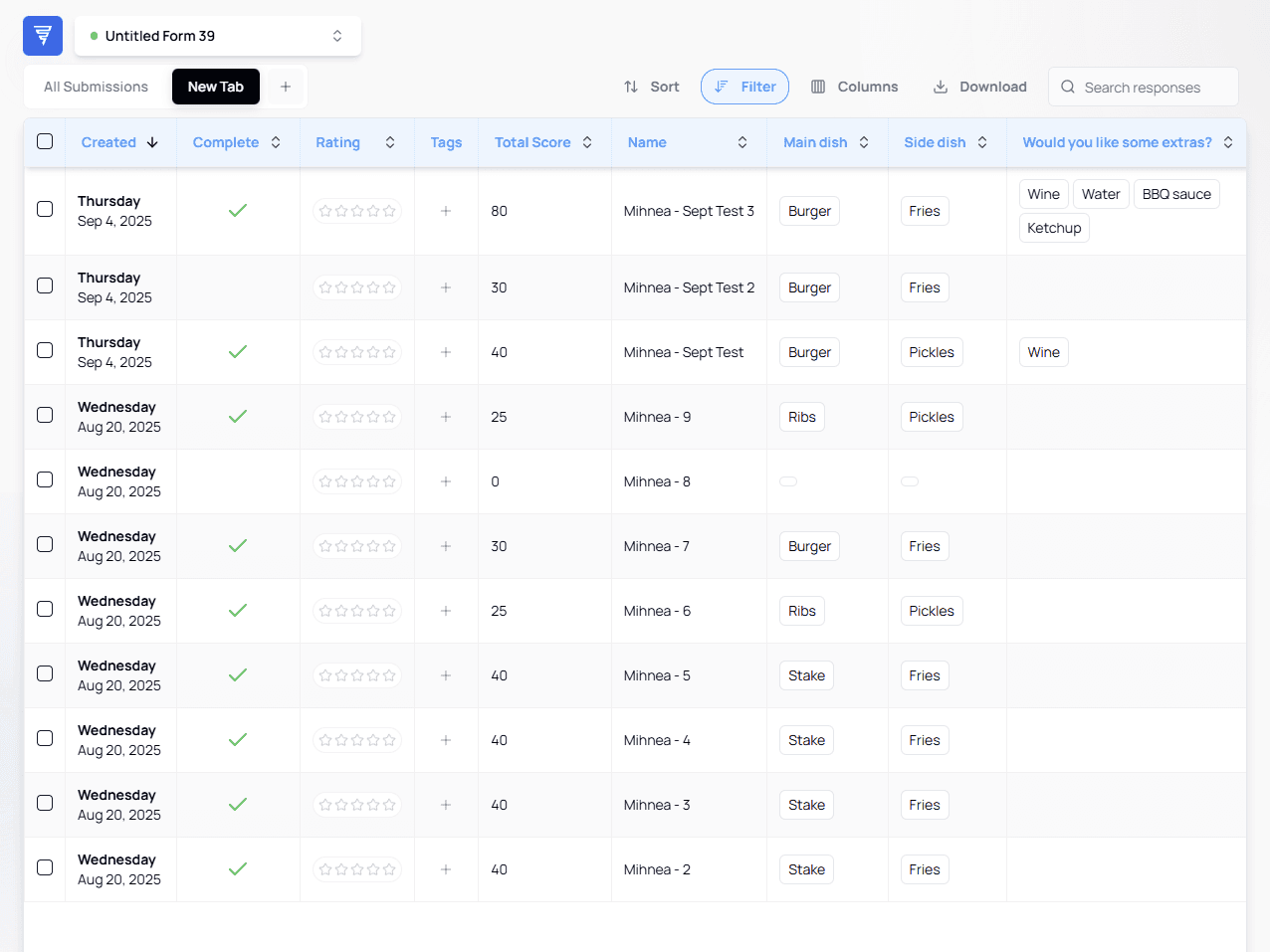
Both paths lead to the same Responses interface:

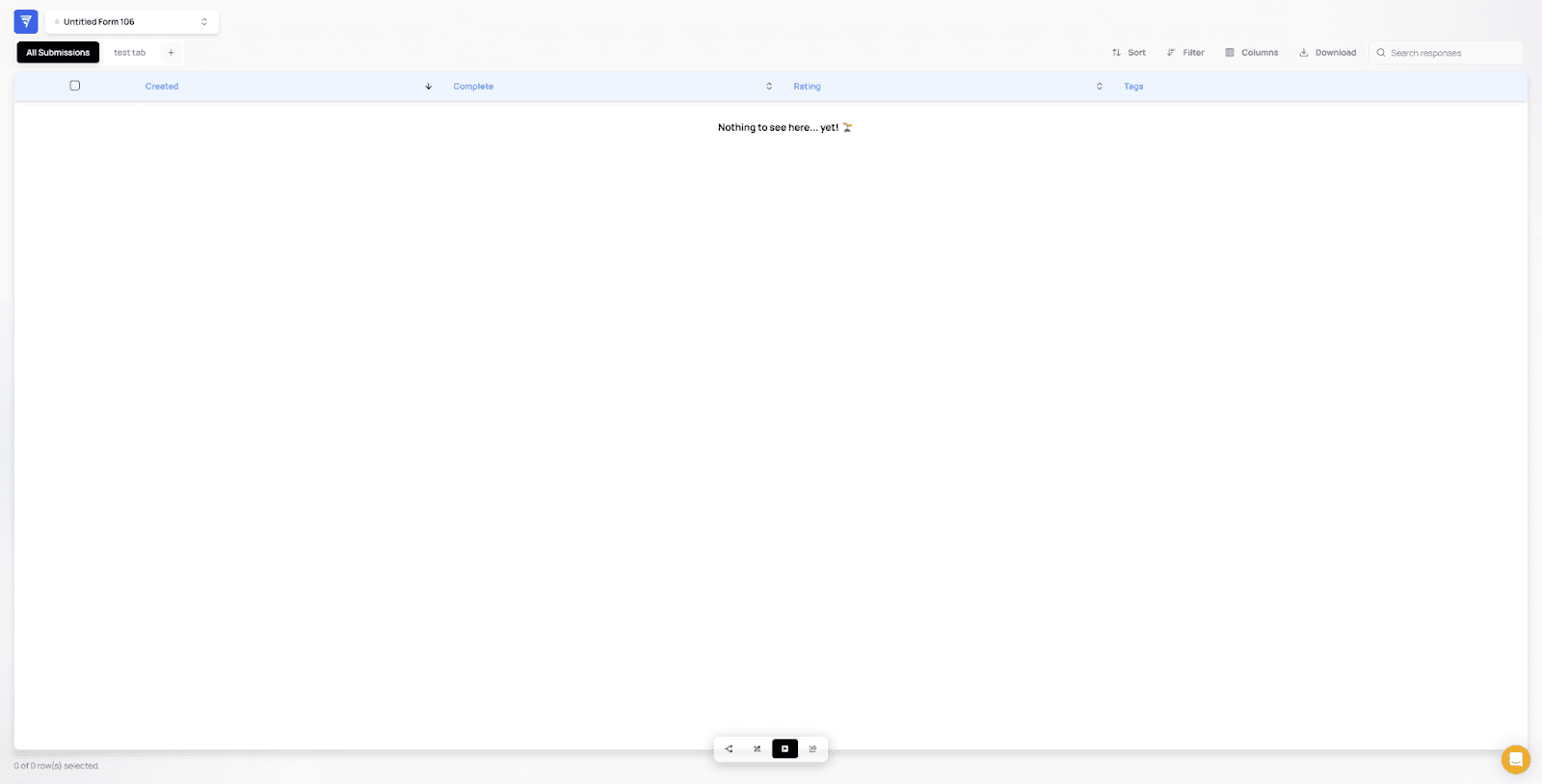
If your form doesn’t have any submissions yet, the page will look like this:
Tabs: Organize Your Submissions
Each form starts with a default All Submissions tab.

Tabs help you organize different views of your results — especially when used together with Sorting, Filtering, and Column Selection.
Creating a New Tab
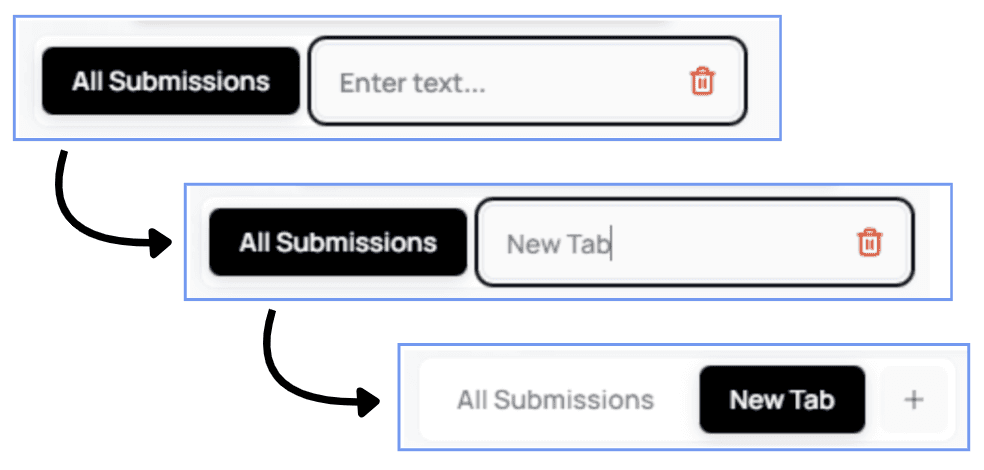
Click the + icon → type a name → press Enter.
Deleting Tabs
Hover over any tab to reveal the trash icon.
⚠️ At least one tab must always remain.
You cannot delete all tabs.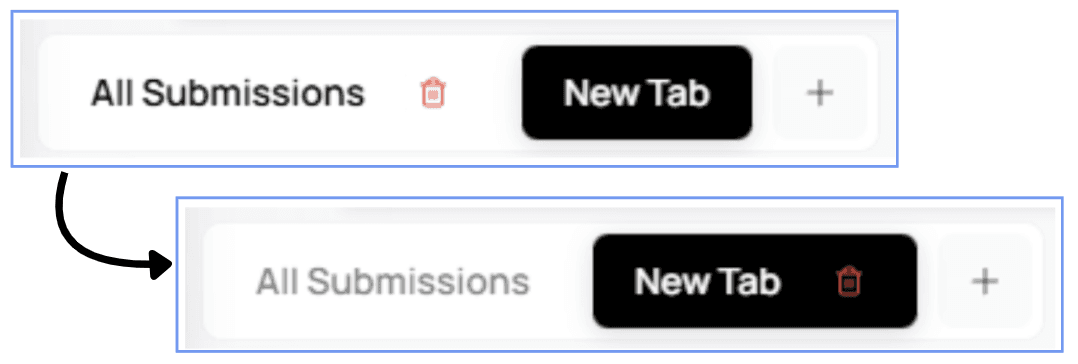
Sorting Submissions
Sorting allows you to define how results are ordered (ASC or DESC).
You can sort by one or multiple columns in any order.


Filtering Submissions
Filters allow you to display only submissions that meet specific criteria.

Adding your first filter
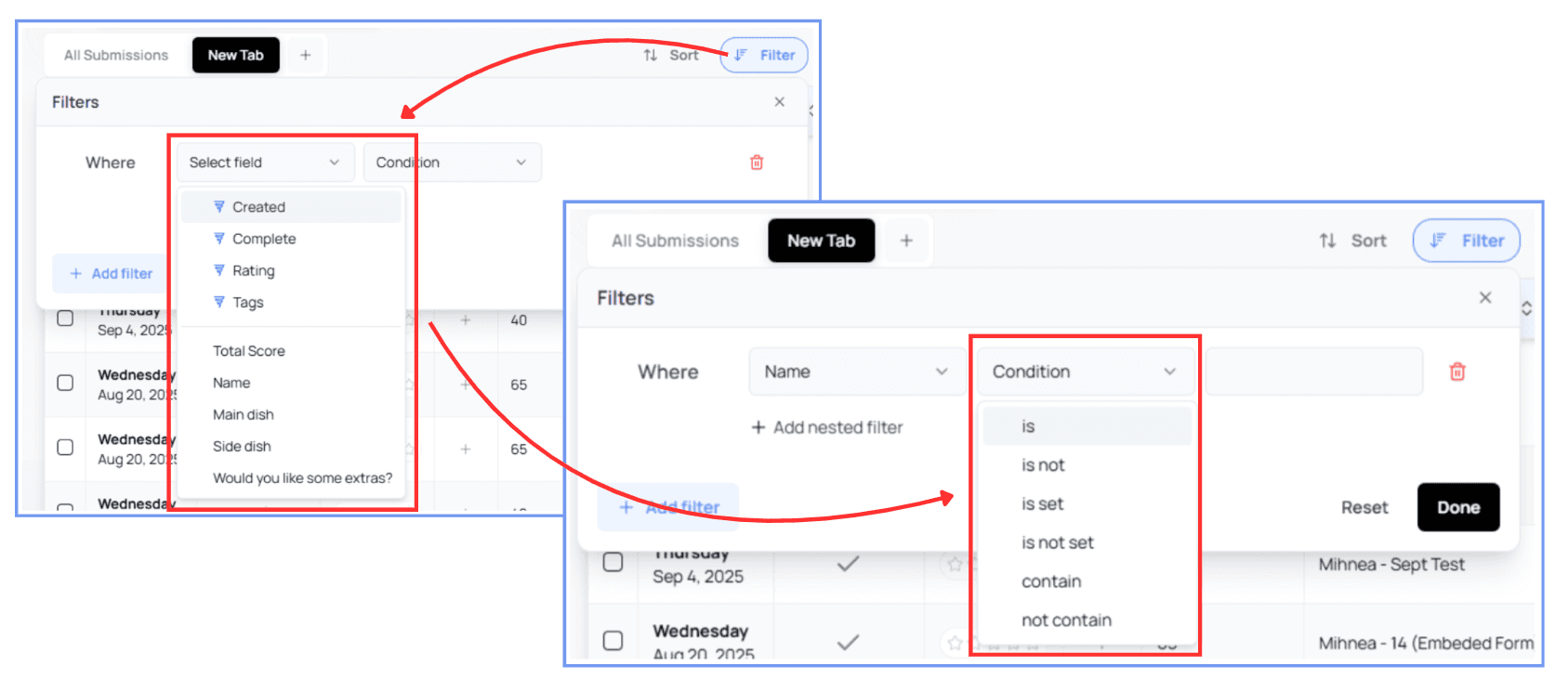
Here is how you add a filter:
Select a field
Choose a condition
Enter the value
Example:
Filtering out submissions where the name contains the number "1".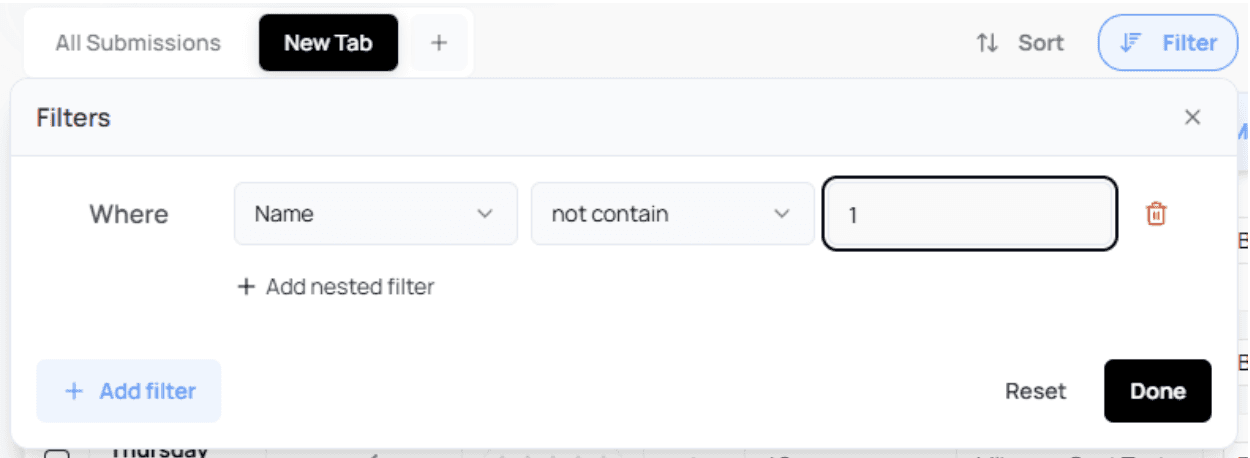
Adding multiple filters (nested filters)
Click + Add nested filter to chain additional conditions.

You can combine them using:
AND → all conditions must be true
OR → at least one condition must be true
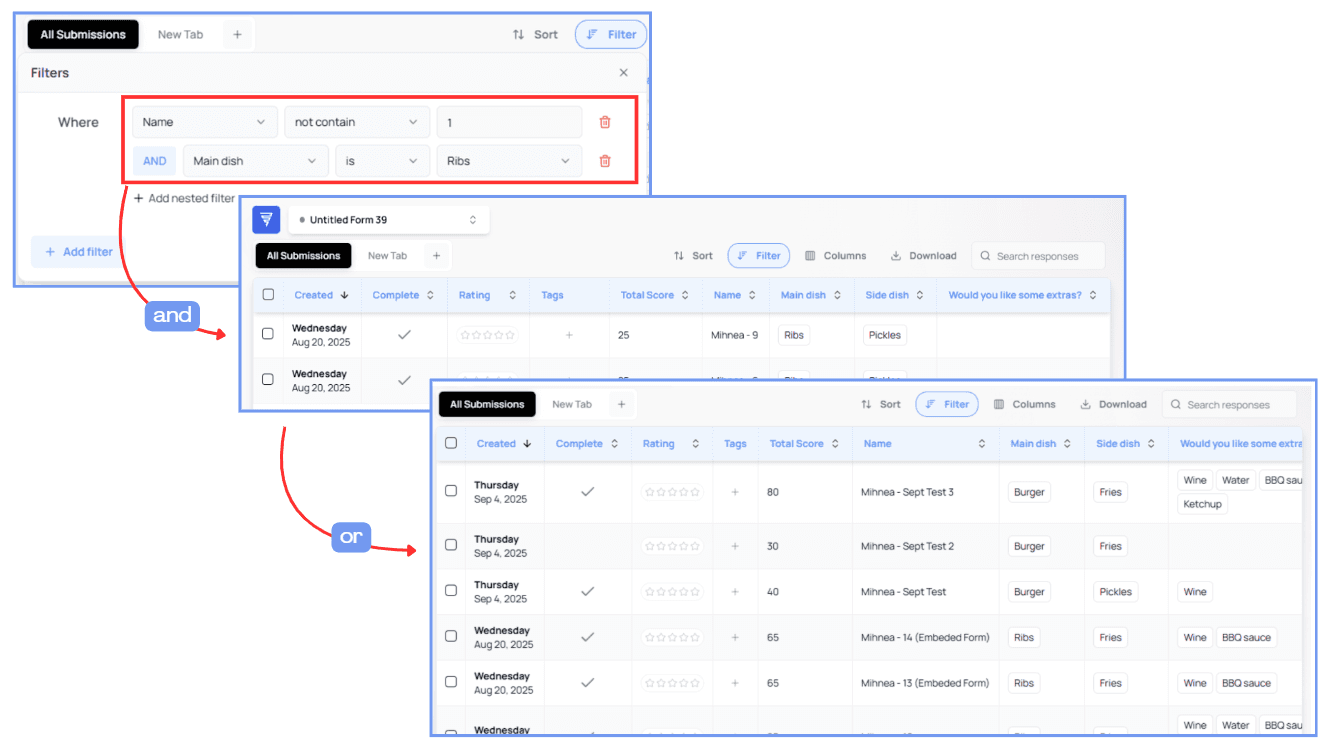
This allows highly targeted result sets.
Customizing Visible Columns
The Columns panel lets you toggle which columns appear in the table.

Click any column to show/hide it.
Hidden columns display a crossed-eye icon.
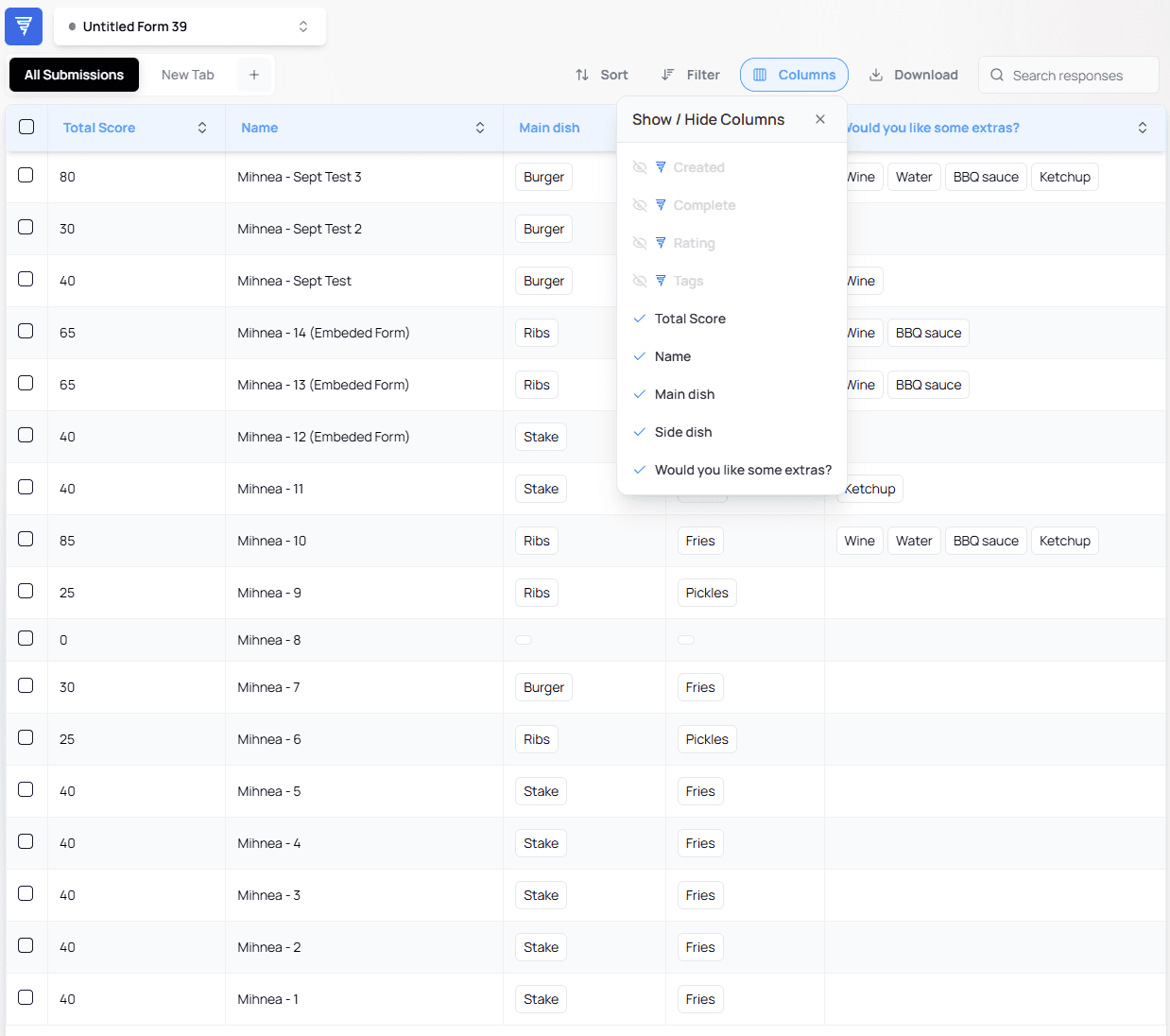
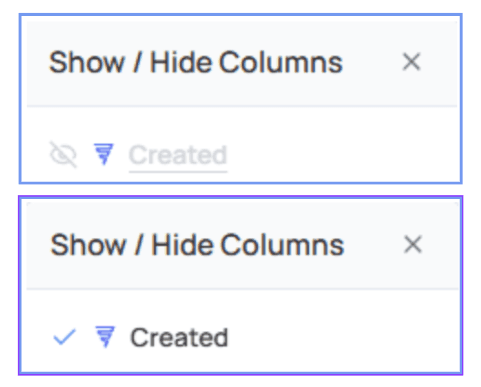
This helps declutter long forms or highlight the most relevant data.
Downloading Submissions
The Download menu provides three export formats:
PDF
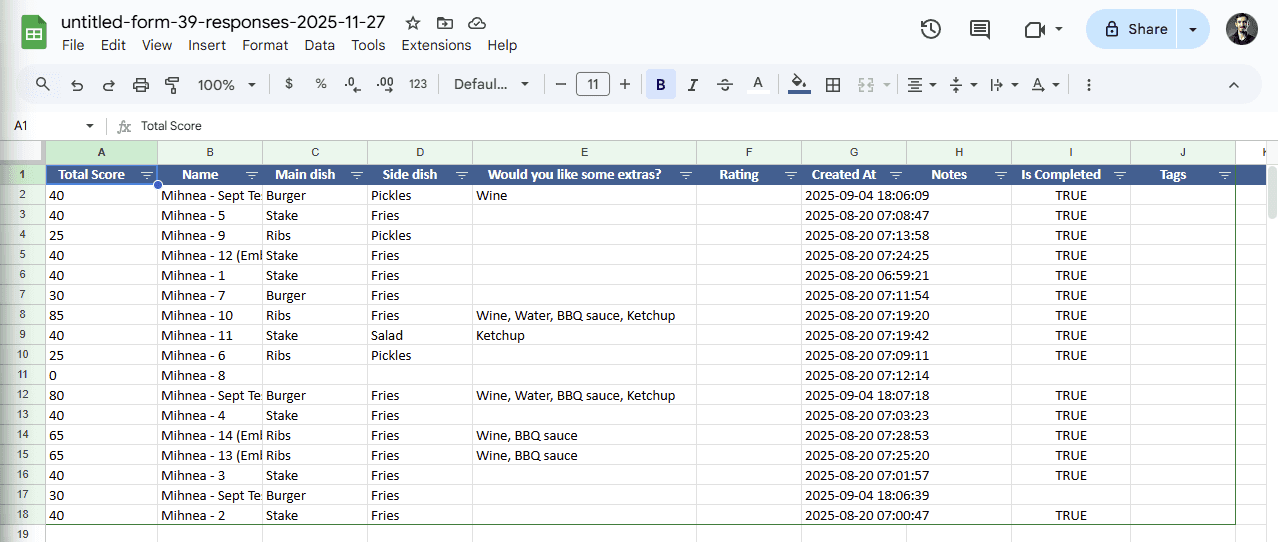
CSV
XLSX

After selecting a format, the system prepares your file.
Once ready, a checkmark appears and your file explorer will open so you can save it.
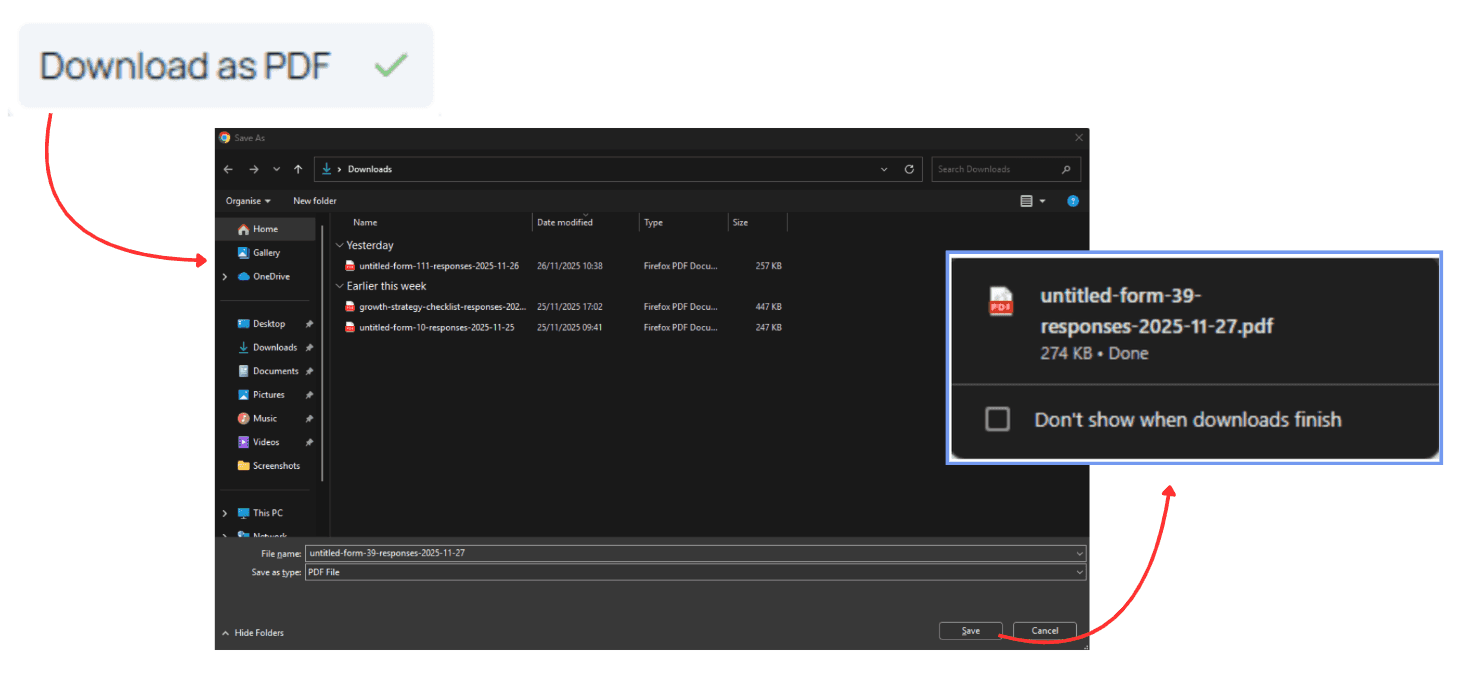
PDF output:

CSV in Google Sheets:

XLSX in Google Sheets:
Using the Search Bar
Use the search bar to instantly find results across all submissions — without adding filters.
Matching terms will be highlighted.


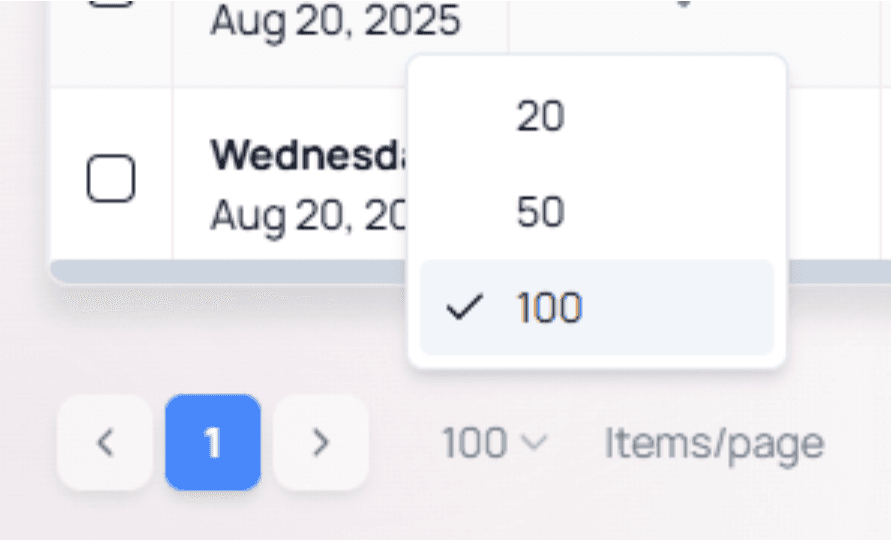
Adjusting Results Per Page
If you have many submissions, you can change how many entries appear per page.
This control is located at the bottom-left of the Results page.
Default = 20 per page.