Personality quizzes are one of the most effective formats for engagement, lead generation, and segmentation.
In this guide, you’ll learn how to build a personality quiz in Formflow using Custom Scoring, Conditional Splits, and Results Pages, based on a real example.
Video walkthrough coming shortly!
What You’ll Build
In this guide, you’ll learn how to:
Structure a personality quiz correctly
Use Custom Scoring to track personality types
Avoid overlapping results using a tie-breaker
Route users to different results using Conditional Splits
(Optional) Send results to your CRM using Webhooks
Publish and use your quiz for marketing or lead qualification
Before You Start: Prepare Your Quiz Assets
Before opening Formflow, prepare the following:
1. Define Your Personality Types
Decide how many personalities you want.
Recommended: 4–5 personality types.
Example:
Crispy Fries
Mashed Potato
Baked Potato
Hash Brown
2. Plan Your Questions (Important)
Recommended structure for personality quizzes:
6–8 total questions
Maximum 10 questions
1 tie-breaker question at the end
Why not just 4–5 questions?
With too few questions, results often overlap (e.g. 40-40-20 or 33-33-33), which leads to unclear outcomes.
💡 Best Practice:
More questions = clearer personality distinction, without hurting completion rate.
Step 1: Create a New Form
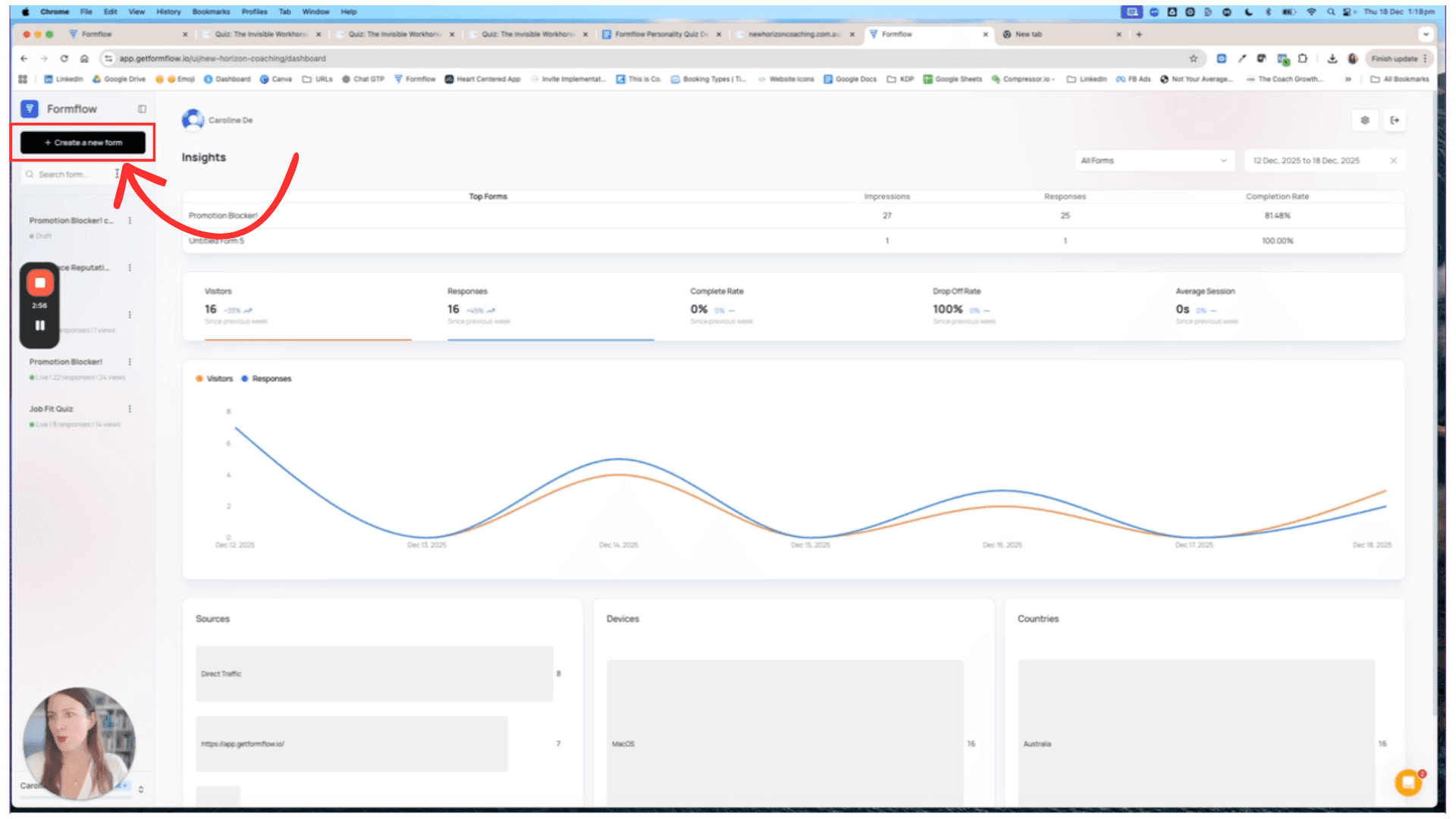
Go to your Formflow dashboard
Create a New Form
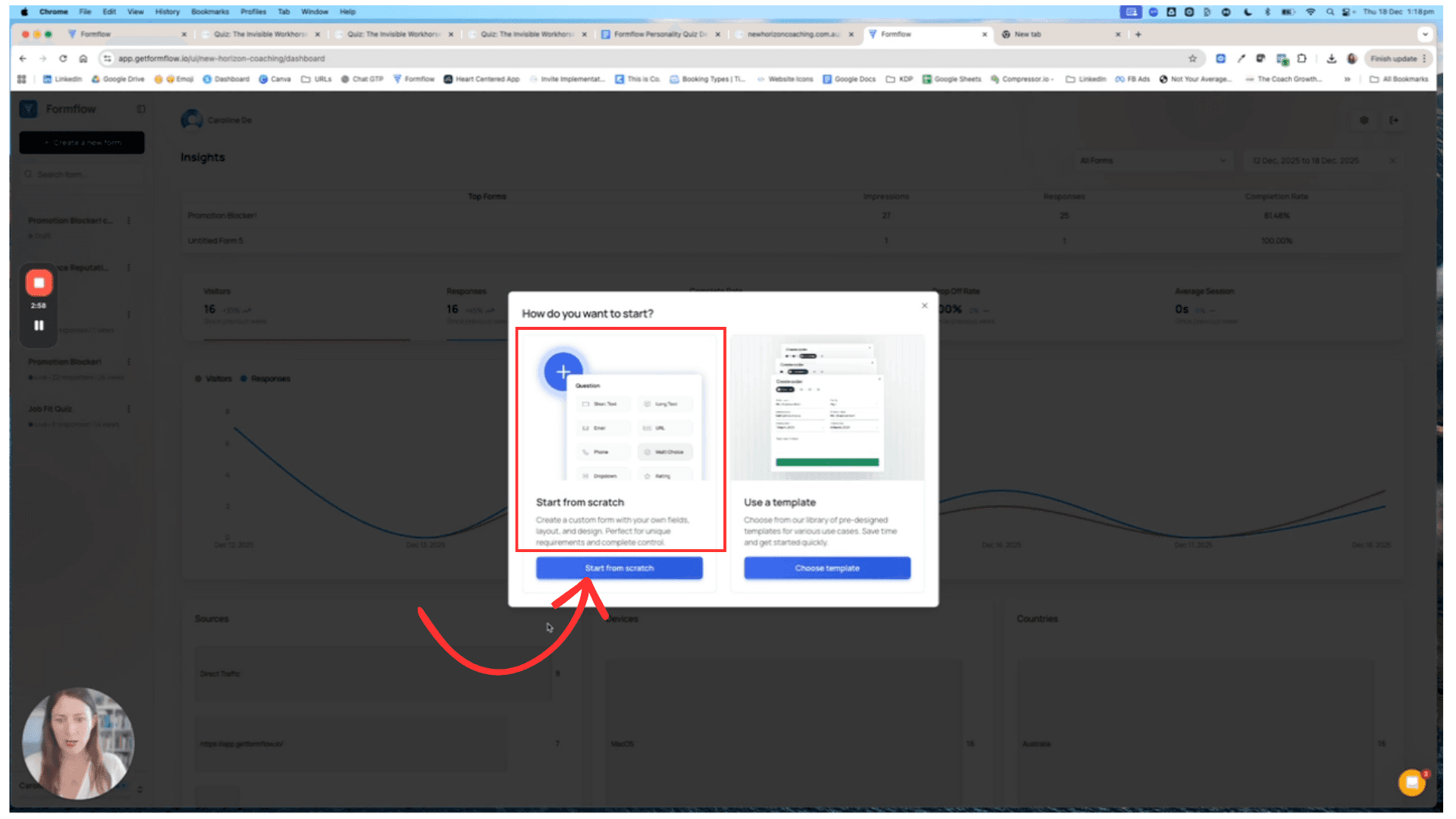
Choose Start from Scratch
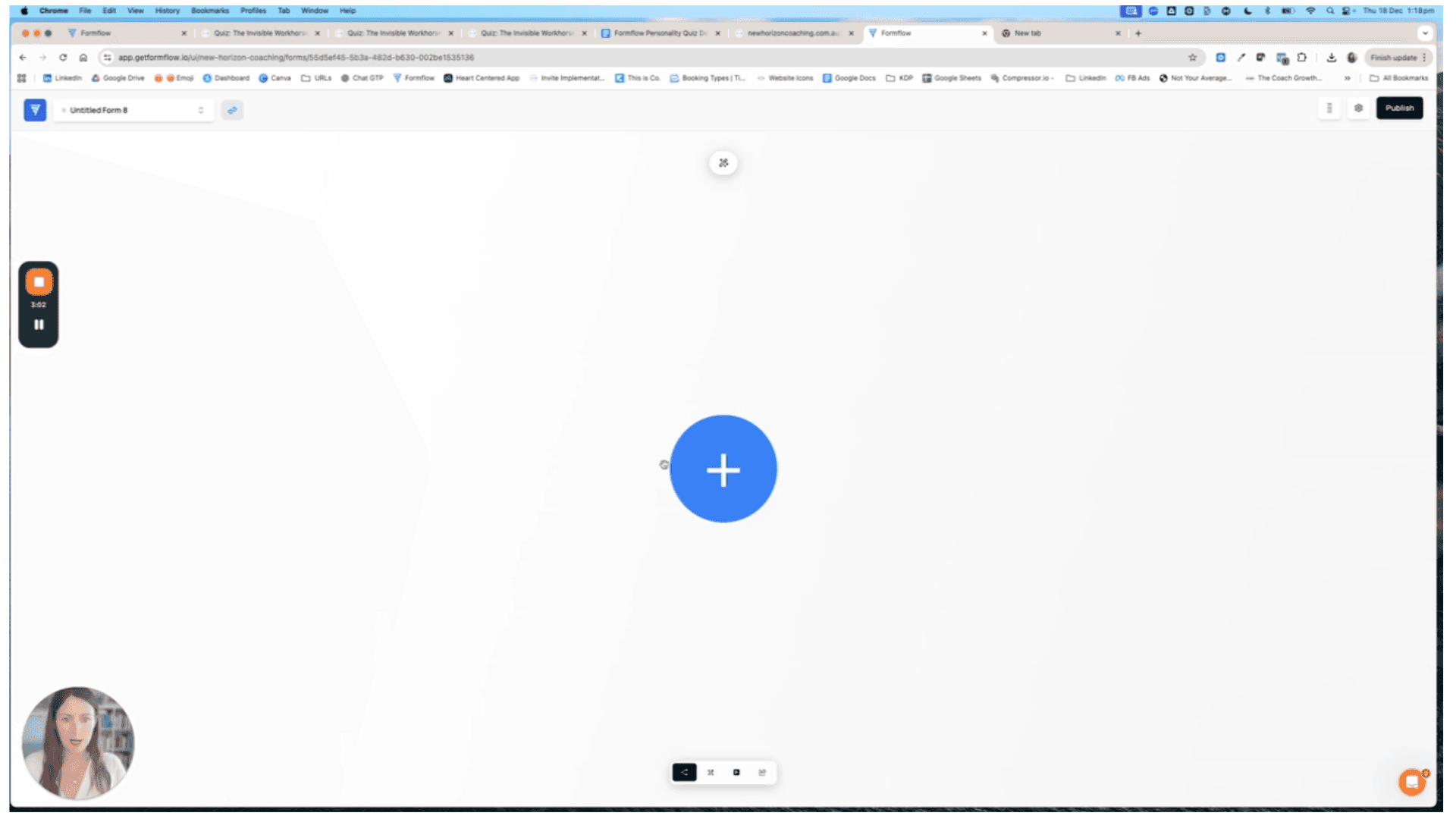
You’ll be taken to the Canvas
Step 2: Enable Custom Scoring
Custom Scoring is the foundation of personality quizzes.
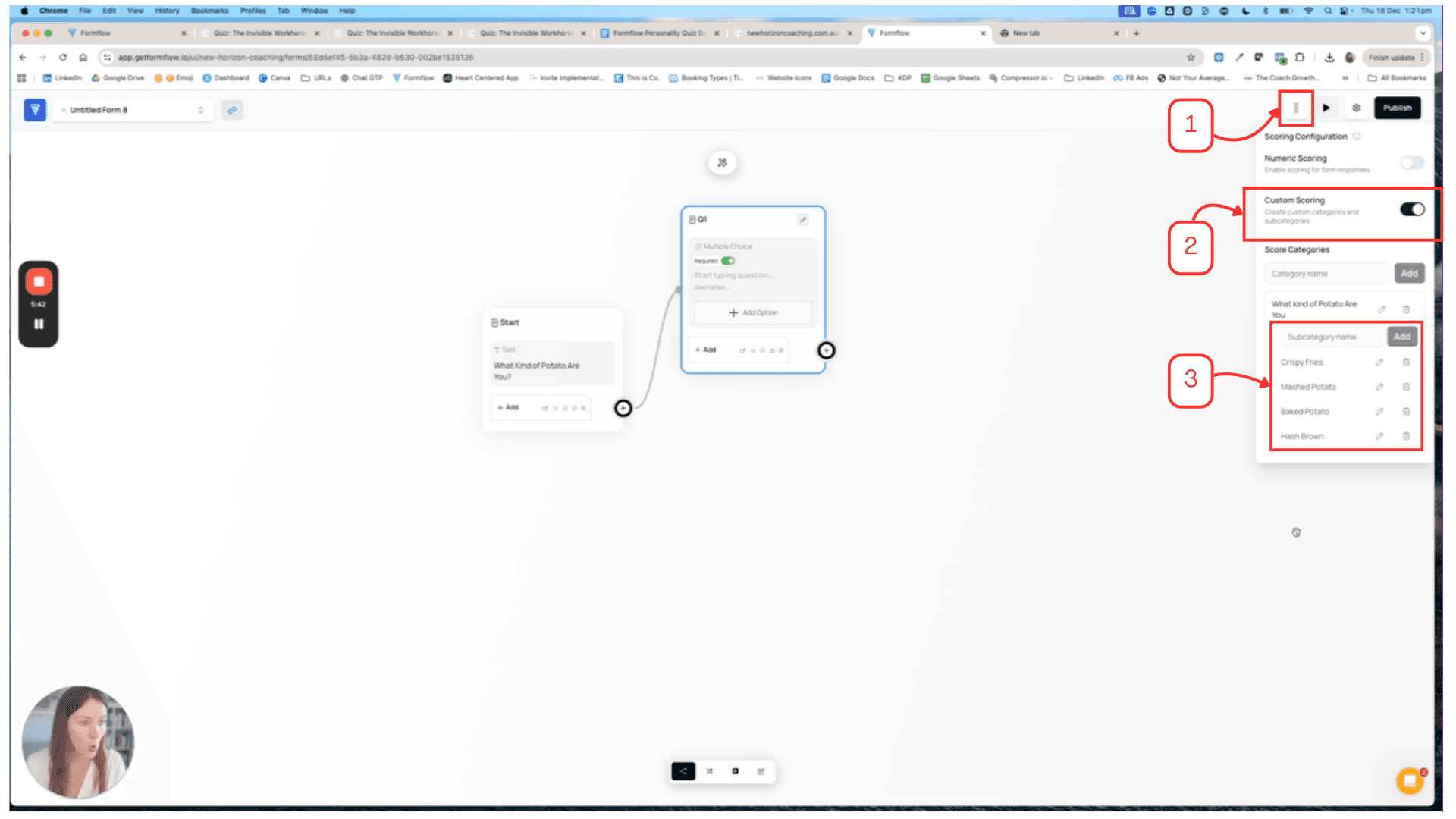
Click the Scoring (burger/menu) icon in the top-right corner
Toggle Custom Scoring ON
Create:
One Main Category (e.g. What kind of potato are you?)
One Sub-category per personality type
Example:
Crispy Fries
Mashed Potato
Baked Potato
Hash Brown
Step 3: Add Quiz Questions & Assign Scoring
Add a Multiple Choice node
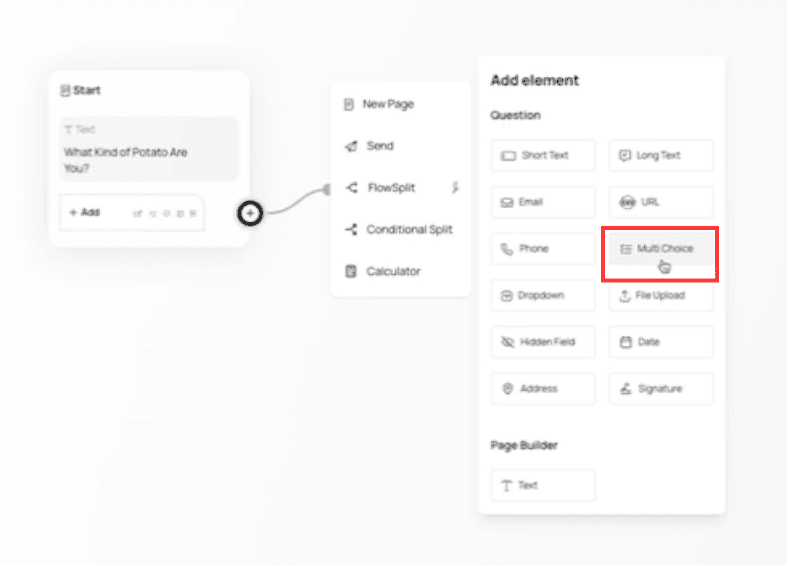
Enter your question text
Add answer options
Assign each option to a personality category
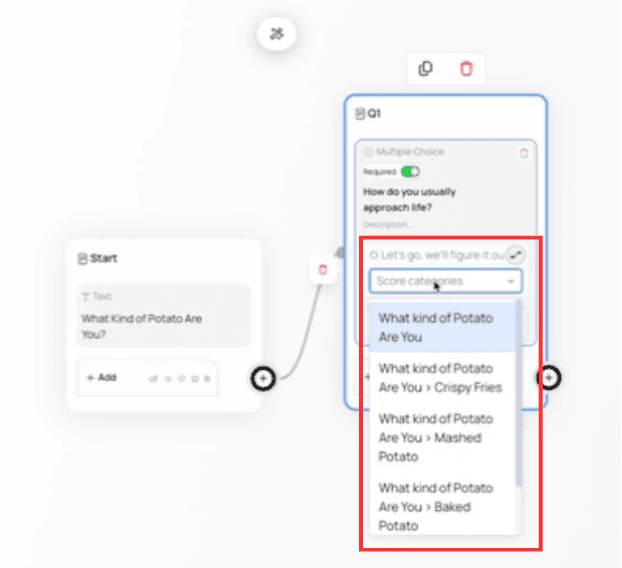
Repeat this for all quiz questions.
💡 Tip:
If you’re short on time, duplicate questions and adjust text — just make sure scoring stays mapped correctly.
Step 4: Add a Tie-Breaker Question (Very Important)
Tie-breakers resolve overlapping results.
Example tie-breaker:
“No thinking. Pick one.”
Each option should map clearly and intentionally to one personality type.
Why this matters:
Even with good questions, users often score evenly across 2 personalities.
The tie-breaker forces a decisive outcome.
Step 5: Create Conditional Splits (Routing Logic)
Now you’ll decide which result each user sees.
Add a Conditional Split node
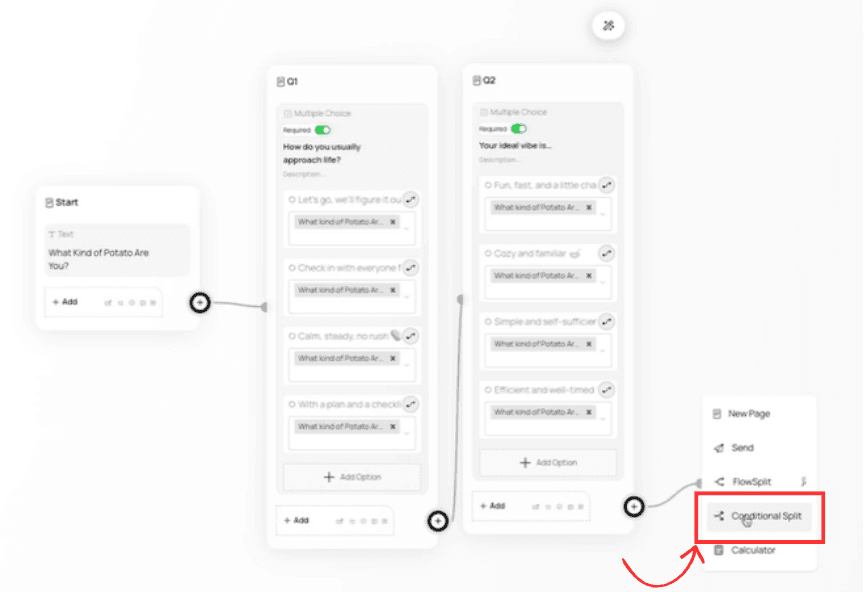
Create one condition per personality type
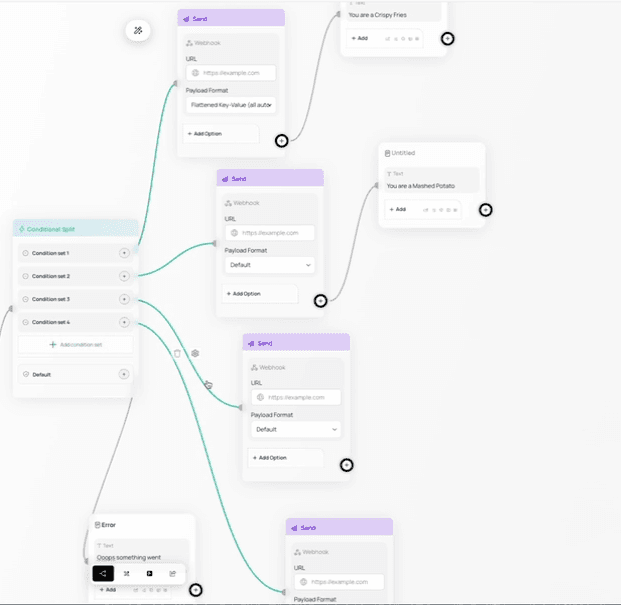
For each condition:
Target Custom Scoring
Select the category
Set rule to is dominant
⚠️ Important:
Use “is dominant”, not “greater than”, so only the strongest personality triggers.
Screenshots to add:
Conditional Split node
Rule targeting “Category → is dominant”
Multiple paths visible
Step 6: Add Webhooks (Optional but Powerful)
If you want to send quiz data to:
A CRM
Email tools
Automation platforms
You can add a Webhook on each personality path.
Best practice:
One webhook per personality result
Use Flattened Key-Value payload
Each webhook can trigger different tags, URLs, or automations
💡 This is ideal for segmented email sequences or lead qualification.
Step 7: Create Results Pages
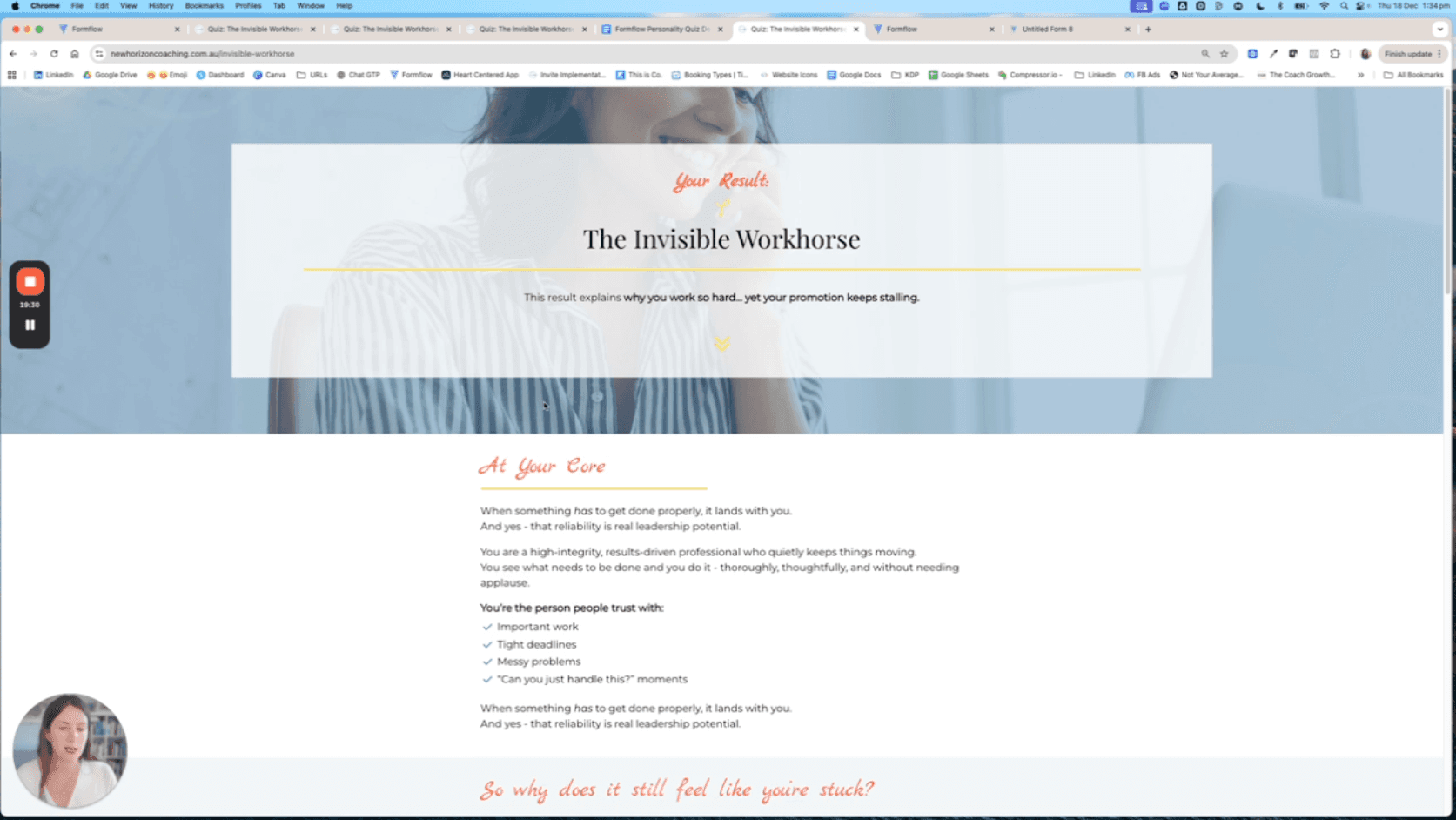
Each quiz outcome should end in a Result Page.
Options:
Show a Text node with the result
Or redirect users to a custom URL
Or combine both
Example:
“You are a Crispy Fry 🥔🍟”
⚠️ Important:
Always include a Default Path with a fallback page
(e.g. “Oops, something went wrong”) — otherwise the form won’t publish.
Step 8: Publish & Test Your Quiz
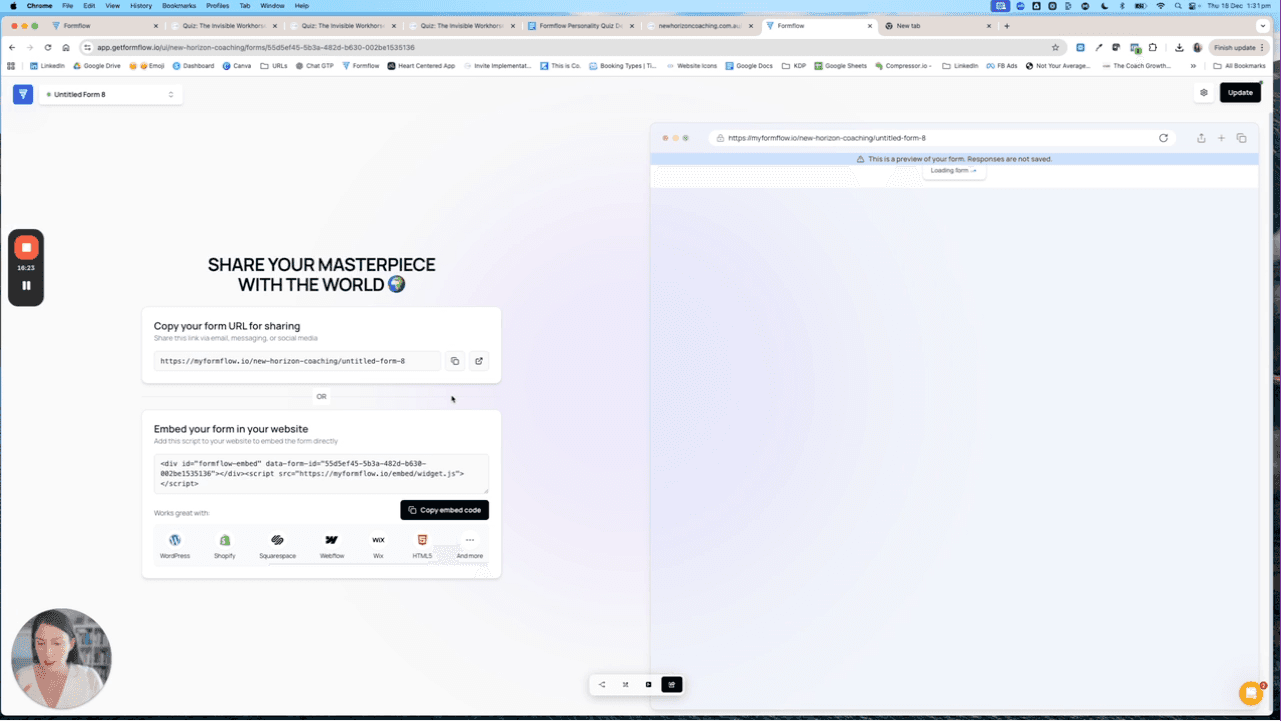
Click Publish
Test the quiz using the preview
Go through multiple answer combinations
Confirm:
Scoring works
Correct result is shown
No dead ends
Once live, your quiz can be used for:
Lead generation
Market research
Sales qualification
Personalised recommendations
Why Personality Quizzes Are So Powerful
With Formflow quizzes, you can:
Tag users based on dominant traits
Personalize follow-ups
Qualify leads before a call
Gain deep audience insights
This makes quizzes ideal for coaches, educators, consultants, and marketers.
Related Documentation
Final Note
Start simple.
Test thoroughly.
Then iterate based on real user data.
Personality quizzes don’t need to be complex, they just need to be intentional.